

PDF Export
Export your Jujukraft scripts to professional PDF format that meets industry standards. PDF export is perfect for sharing with collaborators, submitting to competitions, or printing your scripts.
How to Export to PDF
Section titled “How to Export to PDF”Step 1: Open the Share Panel
Section titled “Step 1: Open the Share Panel”You can reach PDF export in two ways:
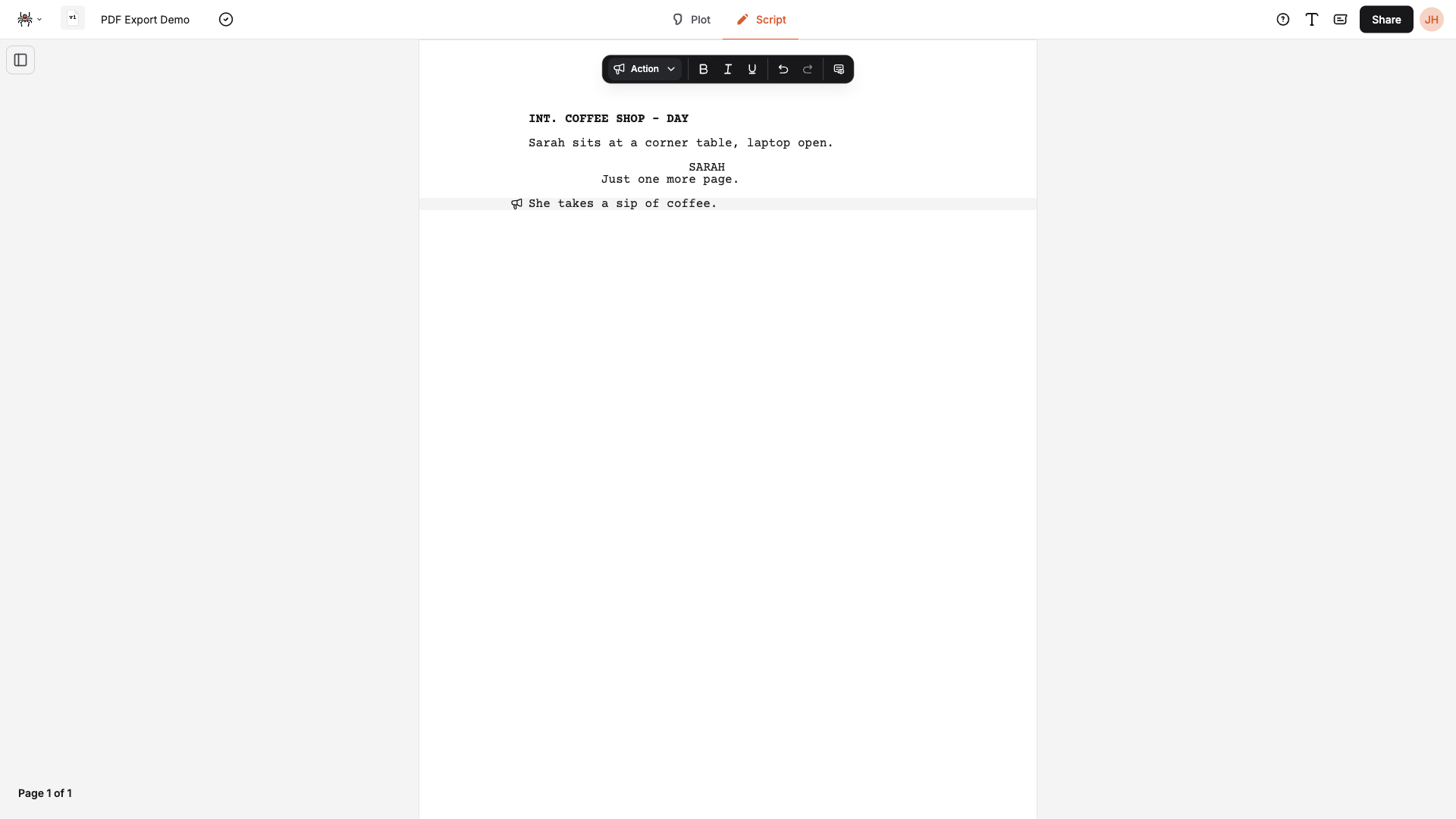
- From the Share button: Click Share in the top bar, then in the Share panel click Download project as .pdf (under the “OR” divider). You’ll see the Download pdf view.
- From the spider menu: Click the spider icon in the top bar to open the menu, then choose Export as…. The Share panel opens directly on the Download pdf view.
Step 2: Configure Export Options
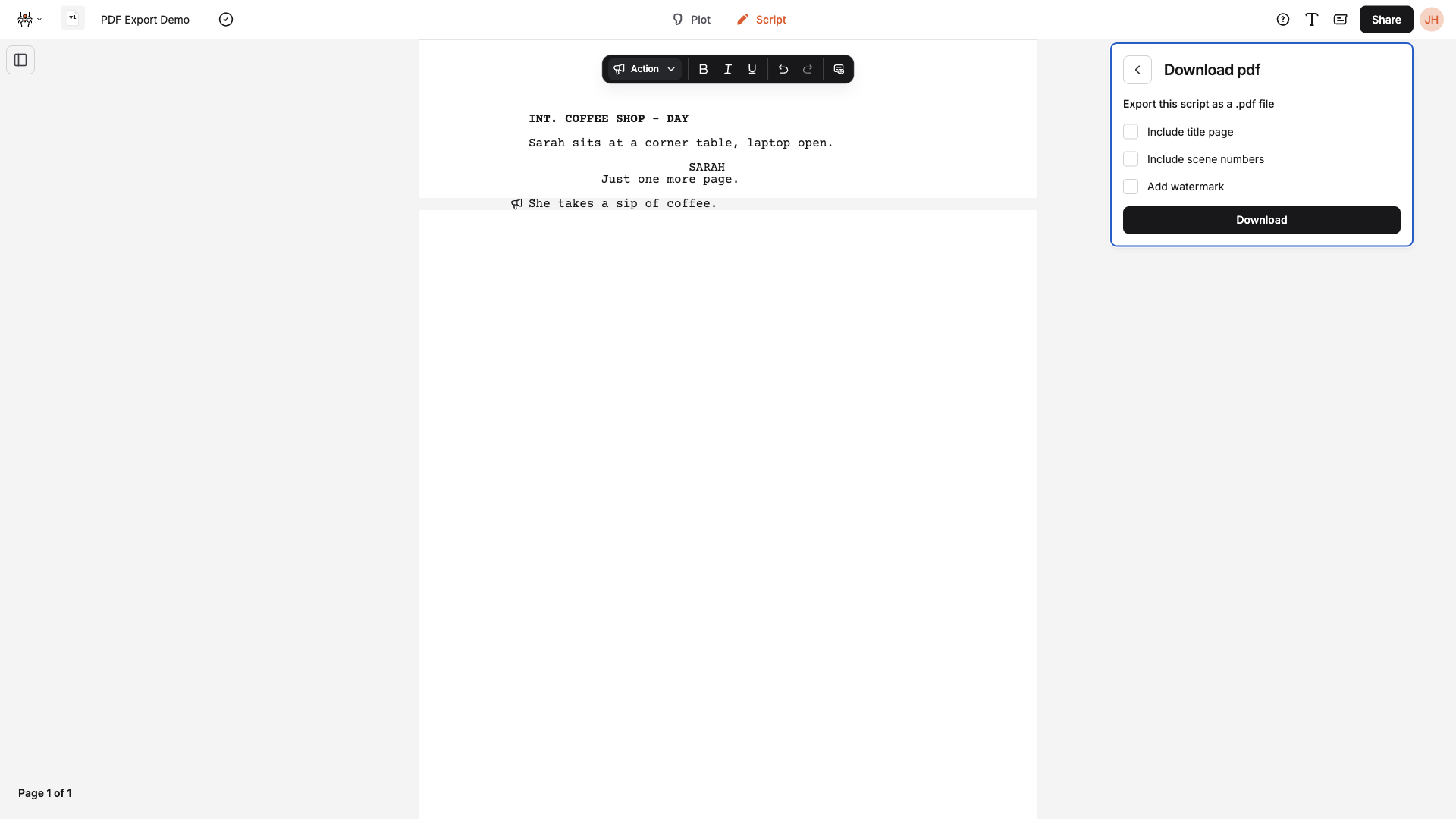
Section titled “Step 2: Configure Export Options”- In the Download pdf view, set your preferences:
- Include title page — add a title page with your script’s title and author
- Include scene numbers — add scene numbers in the PDF
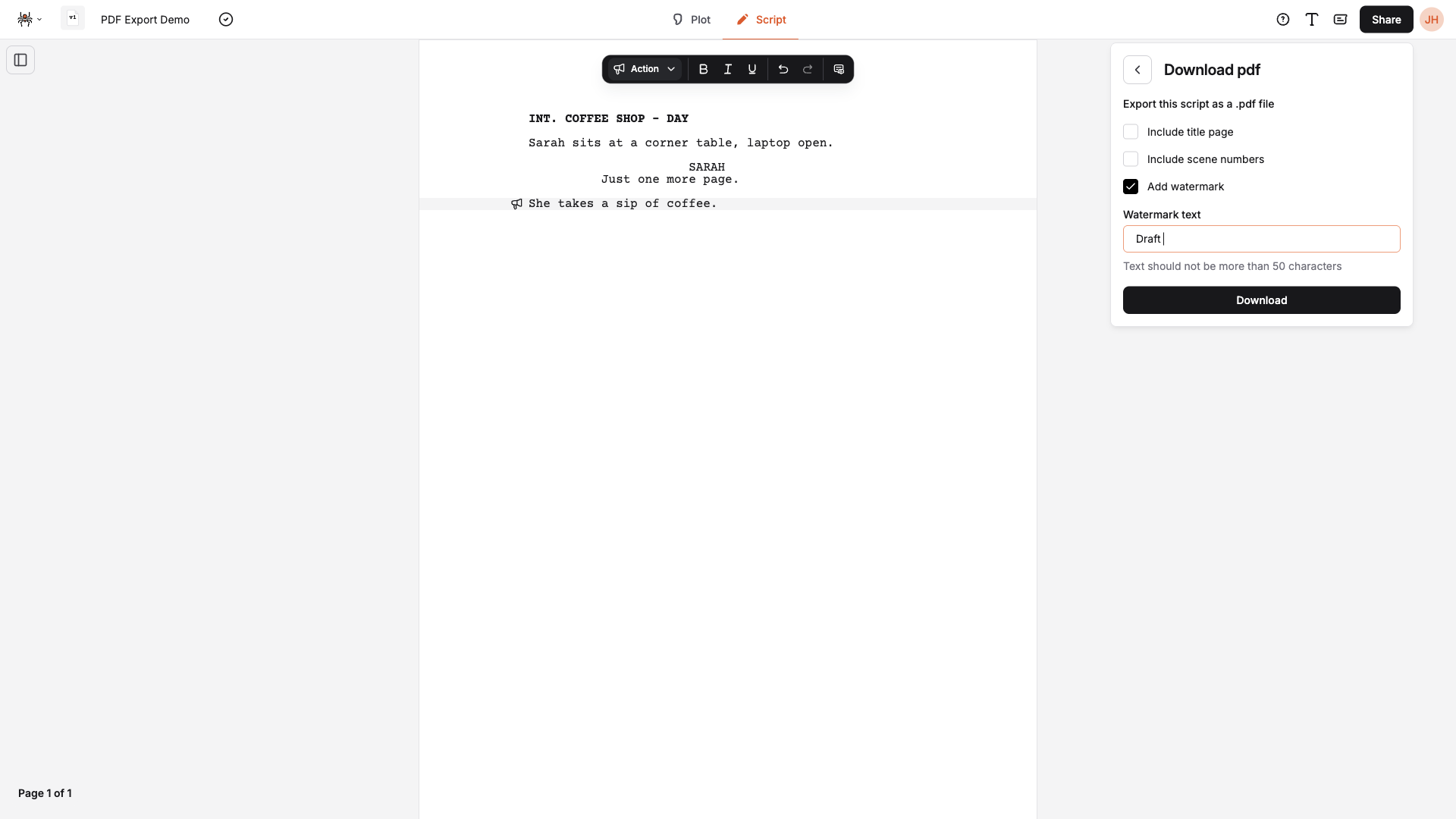
- Add watermark — optional watermark on each page (max 50 characters; if enabled, you must enter text)
- Click “Download” to generate and download your PDF
Export Options
Section titled “Export Options”Content Options
Section titled “Content Options”- Include title page: Adds a title page using your script’s title and author from the project
- Include scene numbers: Renders scene numbers in the exported PDF
- Add watermark: Puts a custom watermark on each page. When enabled, you must enter watermark text (maximum 50 characters)
Page Settings
Section titled “Page Settings”- Page size: Letter
- Margins: Industry-standard margins
- Orientation: Portrait (recommended for scripts)
PDF Features
Section titled “PDF Features”Industry Standard Format
Section titled “Industry Standard Format”Your exported PDF includes:
- Proper element formatting (Scene Headings, Action, Character, Dialogue, etc.)
- Correct indentation for all script elements
- Professional typography with industry-standard fonts
- Page breaks at appropriate locations
File Information
Section titled “File Information”- File size: Optimized for sharing and printing
- Compatibility: Works with all standard PDF readers
- Print quality: Suitable for professional printing
Exporting from the Public View
Section titled “Exporting from the Public View”If you’ve shared your script with Can export enabled, viewers can also export to PDF from the view page (the link you share). They use the Share button on that page and choose Export PDF, with an option to include the title page.
Troubleshooting
Section titled “Troubleshooting”Common Issues
Section titled “Common Issues”PDF won’t generate:
- Refresh the page and try again
- Contact support if it still fails
PDF formatting looks wrong:
- Check that elements are correctly identified in the editor
- Ensure the script is properly formatted
- Try exporting again after saving
Watermark validation:
- If Add watermark is on, you must enter text (1–50 characters)
- Download stays disabled until the watermark text is valid
File Size Guidelines
Section titled “File Size Guidelines”- Short scripts (< 30 pages): Typically under 1MB
- Feature scripts (90–120 pages): Typically 2–5MB
- Long scripts (> 120 pages): May be larger but are still optimized
Tips for Best Results
Section titled “Tips for Best Results”Before Exporting
Section titled “Before Exporting”- Review your script for formatting issues
- Check element detection — ensure elements are correctly identified
- Remove test content or placeholder text
After Exporting
Section titled “After Exporting”- Preview the PDF before sharing
- Check page breaks are in good places
- Verify formatting looks correct
- Test print if you plan to print
Next Steps
Section titled “Next Steps”- Explore Public Sharing
- Master Script Formatting