

Public Sharing
Share your Jujukraft scripts publicly with a unique link that anyone can access. Perfect for getting feedback from collaborators, sharing with beta readers, or showcasing your work.
How to Share Your Script
Section titled “How to Share Your Script”Step 1: Open the Share Panel
Section titled “Step 1: Open the Share Panel”- Navigate to your script in the Jujukraft editor
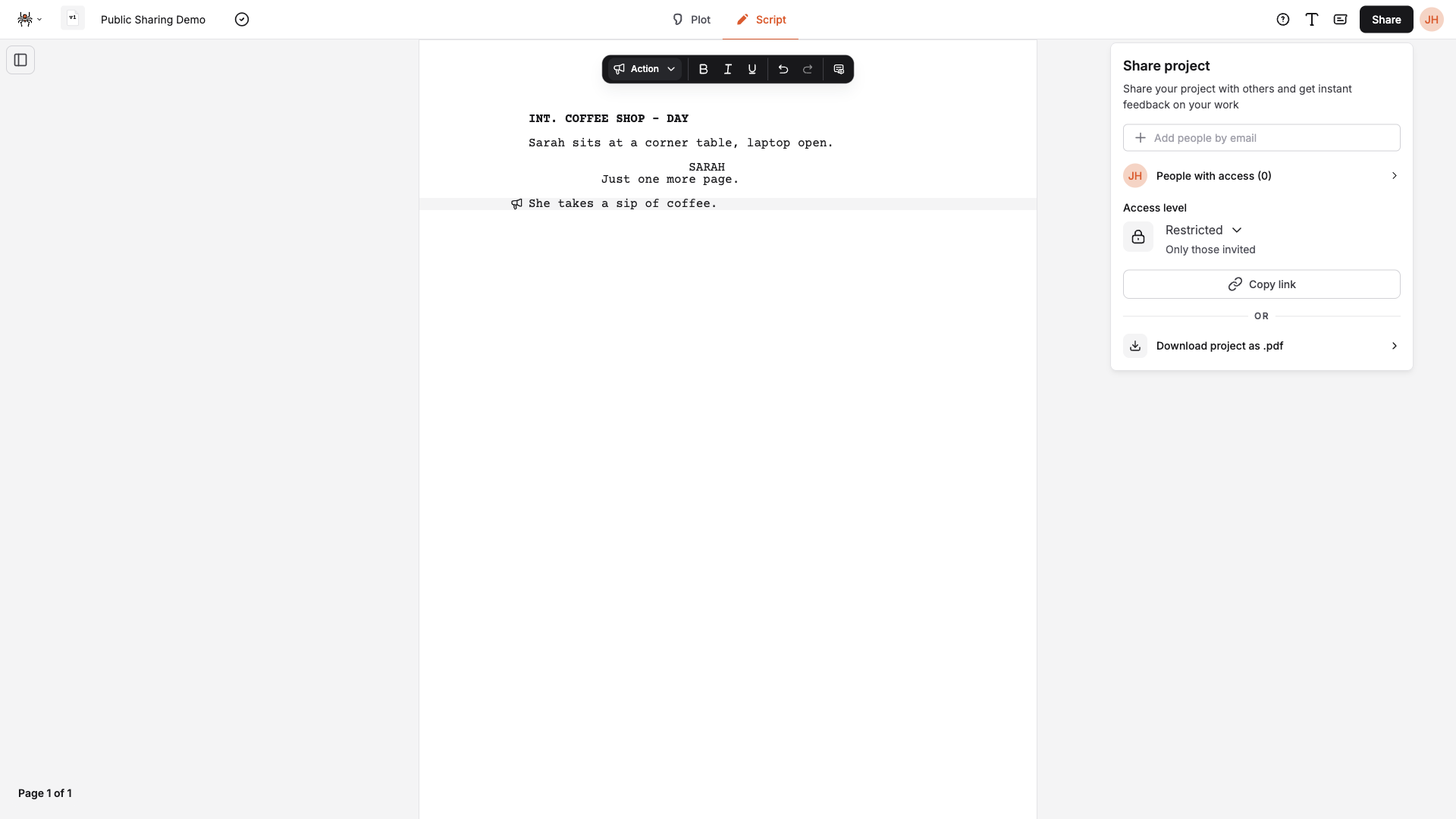
- Click the “Share” button in the top bar (or click the spider icon to open the menu and choose Export as… to open the Share panel on the export view)
- The Share panel opens as a popover. By default you see Share project, where you can manage access and copy the link
Step 2: Set Access Level
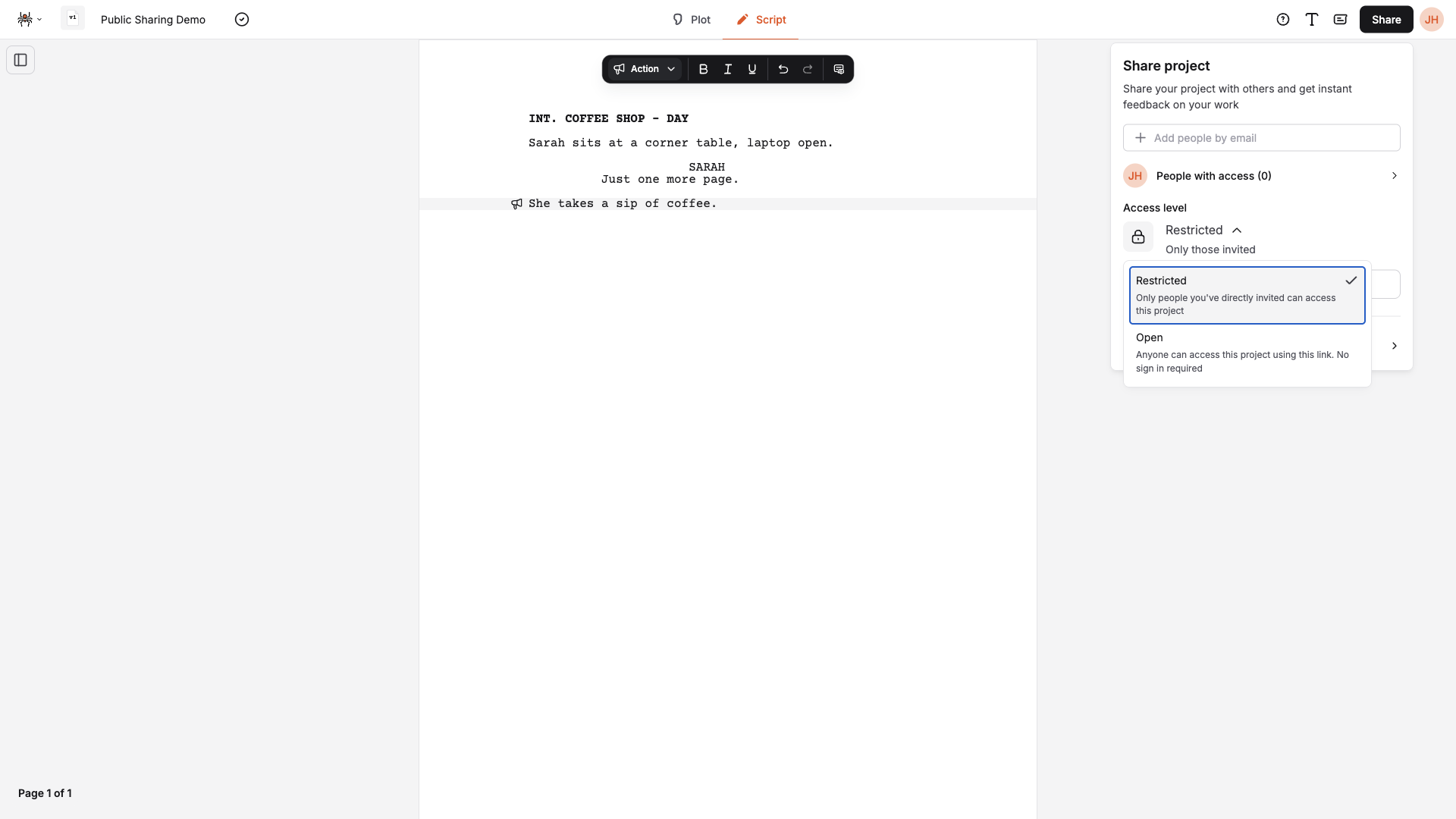
Section titled “Step 2: Set Access Level”- In the Share panel, find the Access level section
- Choose “Open” (Anyone with the link) so the link works for anyone
- Optionally, when the project is Open, use the Can comment and Can export options to allow viewers to leave comments and/or download a PDF
- Use Copy link to copy it to your clipboard
Step 3: Copy and Share Your Link
Section titled “Step 3: Copy and Share Your Link”- Click “Copy link” to copy the URL to your clipboard
- Share via email, messaging, or social media
- Anyone with the link can view your script (and comment or export if you enabled those options)
Sharing Options
Section titled “Sharing Options”Access Levels
Section titled “Access Levels”- Restricted: Only people you’ve directly invited can access the project
- Open: Anyone with the link can access. No sign-in required. You can further set:
- Can comment: Viewers can leave comments
- Can export: Viewers can download the script as PDF from the view page
Link Format
Section titled “Link Format”Your shareable link has this form: https://jujukraft.com/projects/[project-id]/view
For example: https://jujukraft.com/projects/1234567890/view
Inviting People Directly
Section titled “Inviting People Directly”From the same Share panel you can:
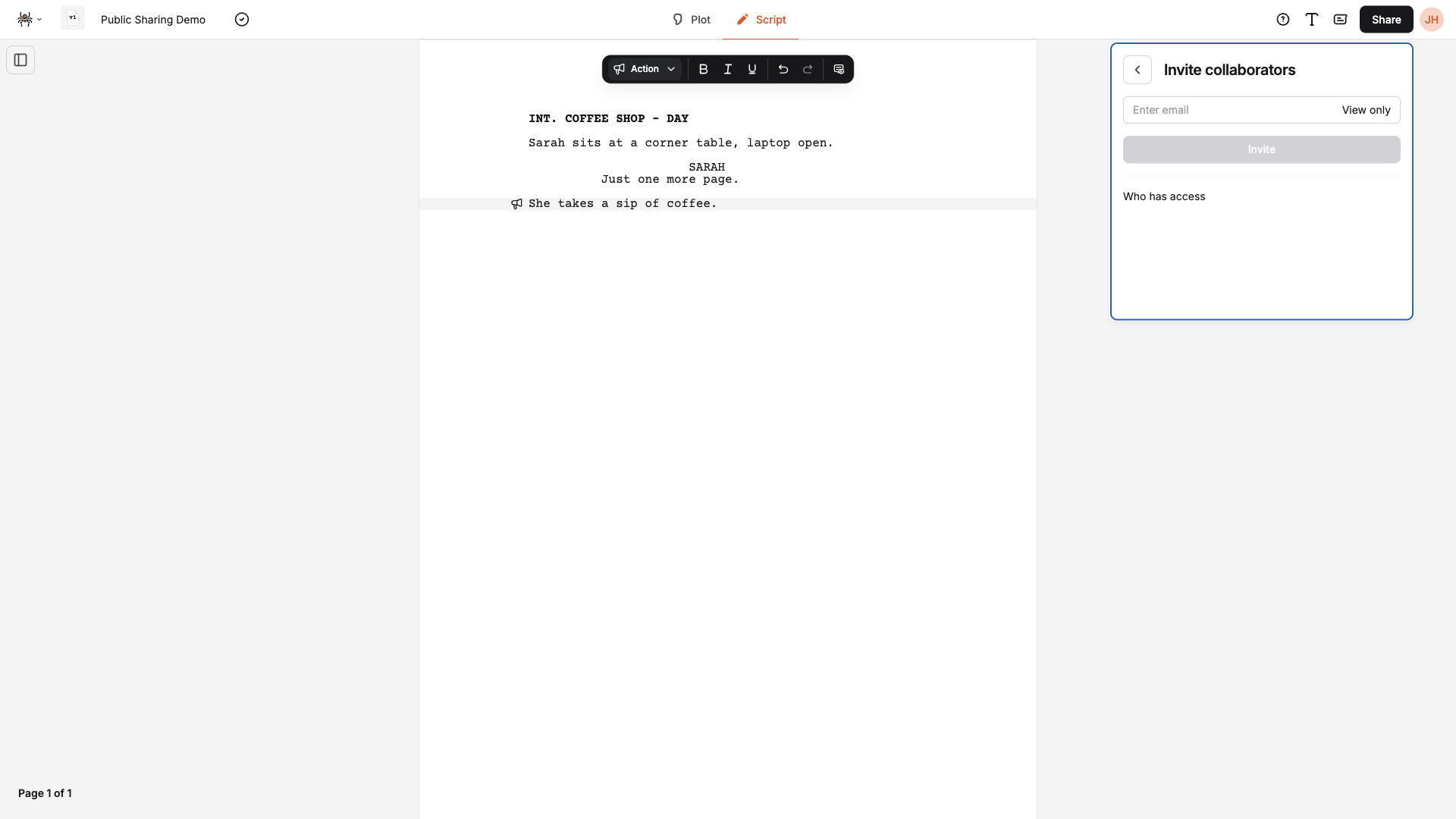
- Add people by email — use the “Add people by email” field to invite specific collaborators
- See people with access — open “People with access” to manage invites and see who has been added
Click Add people by email or People with access to open the Invite collaborators view, where you can enter an email, set the access level (View only or Can edit), and see who has access.
What Viewers See
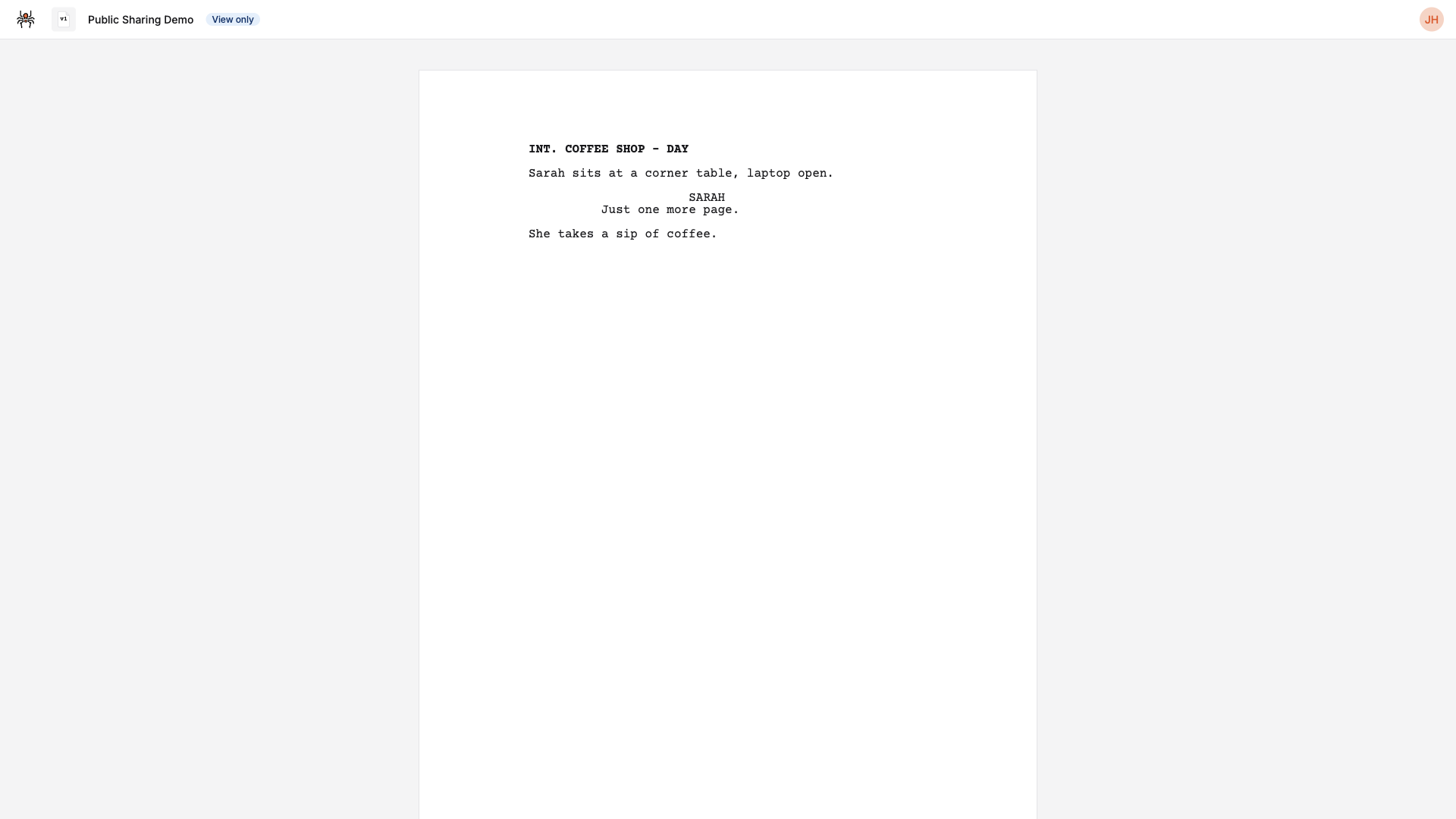
Section titled “What Viewers See”When someone opens your shared link, they see a read-only view of your script. If you set the project to Open and enabled Can export, they can also copy the view link and download the script as PDF from that page.
Public View Interface
Section titled “Public View Interface”- Professional script layout with proper formatting
- Read-only view of your script
- Clean, distraction-free interface
- Mobile-responsive design
Viewer Options (when allowed)
Section titled “Viewer Options (when allowed)”When Can export is enabled, viewers see a Share button on the view page that lets them:
- Copy the public view link
- Export the script as PDF (with optional title page)
Managing Your Shared Scripts
Section titled “Managing Your Shared Scripts”Change Access Level
Section titled “Change Access Level”- Make it private: Set access level to Restricted — only invited people can access
- Make it public: Set access level to Open — anyone with the link can view (and optionally comment or export)
- Changes take effect immediately — no need to regenerate the link
Update Shared Script
Section titled “Update Shared Script”- Edits sync — when you save, the shared view shows the latest version
- No need to reshare the link when you update the script
Stop Sharing
Section titled “Stop Sharing”- Set to Restricted: Change access level to Restricted
- The link no longer works for people who weren’t invited
- Invited collaborators keep access until you remove them
Use Cases
Section titled “Use Cases”Getting Feedback
Section titled “Getting Feedback”- Share with beta readers for early feedback
- Send to writing groups for peer review
- Get input from industry professionals
Collaboration
Section titled “Collaboration”- Share with co-writers via email invite or link
- Send to directors for script review
- Share with producers for consideration
Portfolio Showcase
Section titled “Portfolio Showcase”- Showcase your work to potential clients
- Share with agents for representation
- Use the view link in your portfolio or website
Best Practices
Section titled “Best Practices”Before Sharing
Section titled “Before Sharing”- Review your script for any sensitive content
- Check formatting in the editor
- Test the link yourself first
When Sharing
Section titled “When Sharing”- Include context when sending the link
- Set expectations about feedback type
- Follow up with viewers after they read
- Respect viewers’ time and feedback
After Sharing
Section titled “After Sharing”- Collect and organize feedback
- Thank viewers for their time
- Update the script based on feedback
Troubleshooting
Section titled “Troubleshooting”Common Issues
Section titled “Common Issues”Link doesn’t work:
- Check that the link was copied correctly
- Confirm the project access level is Open (not Restricted)
- Contact support if the issue continues
Viewers can’t access:
- Ensure the access level is Open
- Check that you didn’t switch back to Restricted
- Confirm the project still exists
Changes not showing:
- Ask viewers to refresh the page
- Ensure the project is still set to Open
Link Security
Section titled “Link Security”- Links use your project ID — they are unique and not guessable
- No personal information is exposed in the URL
- You control access via the access level and invite list
- Viewers cannot access your account or other projects
Next Steps
Section titled “Next Steps”- Learn about PDF Export
- Master Script Formatting
- Explore Character Management