

Elements
Learn how Jujukraft’s elements work and which ones provide intelligent suggestions to enhance your writing.
How Elements Work
Section titled “How Elements Work”Jujukraft uses intelligent rule-based logic to determine the next appropriate screenplay element based on your current position in the script.
Rule-Based Logic
Section titled “Rule-Based Logic”The editor follows these rules to determine what element comes next:
- Scene → Action (After a scene heading, write action)
- Action → Character (After action, introduce a character)
- Character → Dialogue (After character name, write dialogue)
- Dialogue → Character (After dialogue, introduce next character)
- Parenthetical → Dialogue (After parenthetical, continue dialogue)
Smart Element Insertion
Section titled “Smart Element Insertion”When you press Enter, Jujukraft automatically inserts the next logical element based on your current position in the script structure.
Elements with Suggestions
Section titled “Elements with Suggestions”Some elements provide intelligent suggestions to enhance your writing:
- Character Names - Suggests previously used characters
- Scene Headings - Suggests common locations and times
- Transitions - Suggests standard transition types
Scene Headings
Section titled “Scene Headings”Element Flow
Section titled “Element Flow”After a scene heading, Jujukraft automatically inserts an action block:
INT. COFFEE SHOP - DAY
John enters the coffee shop, scanning the room nervously.
Rule: Scene → Action
Scene Heading Suggestions
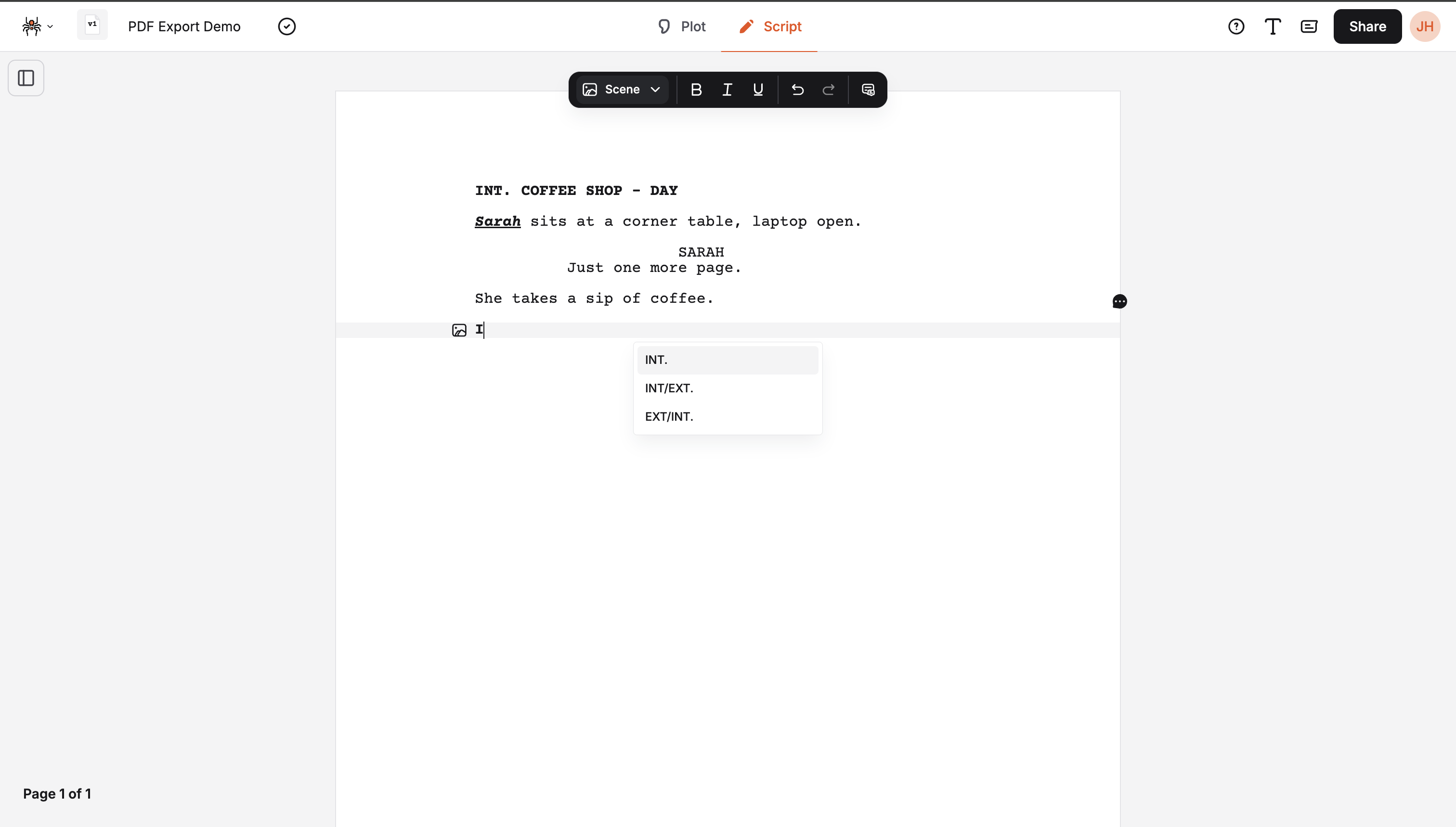
Section titled “Scene Heading Suggestions”When typing scene headings, Jujukraft provides suggestions for:
- Scene indicators (INT. for Interior, EXT. for Exterior)
- Time of day (DAY, NIGHT, MORNING, EVENING)
- Previously used locations in your script
Format: Scene headings must follow the standard format: SCENE INDICATOR. LOCATION - TIME
Scene Indicators:
- INT. = Interior (inside a building, room, vehicle)
- EXT. = Exterior (outside, outdoors, on the street)
- INT./EXT. = Interior/Exterior (moves between inside and outside)
Examples:
INT. COFFEE SHOP - DAYEXT. CITY STREET - NIGHTINT. OFFICE - MORNING
Manual Scene Creation
Section titled “Manual Scene Creation”To create a scene heading manually:
- Use keyboard shortcut
Ctrl+1(orCmd+1on Mac) - Type your scene heading
- Press Enter to automatically insert action block
Character Names
Section titled “Character Names”Element Flow
Section titled “Element Flow”After action or dialogue, Jujukraft automatically inserts a character name:
John enters the coffee shop, scanning the room nervously.
                    JOHN           Hello, how are you?
Rules: Action → Character, Dialogue → Character
Character Name Suggestions
Section titled “Character Name Suggestions”When typing character names, Jujukraft provides suggestions for:
- Previously used characters in your script
- Character names from your character list
Character Integration
Section titled “Character Integration”When you create a character name:
- Automatically added to your project’s character list
- Available in character management panel
Action Blocks
Section titled “Action Blocks”Element Flow
Section titled “Element Flow”After a scene heading, Jujukraft automatically inserts an action block:
INT. COFFEE SHOP - DAY
John enters the coffee shop, scanning the room nervously.He spots Sarah at a corner table and approaches.
Rule: Scene → Action
Action Block Structure
Section titled “Action Block Structure”Action blocks are automatically:
- Left-aligned with proper margins
- Single-spaced
Dialogue
Section titled “Dialogue”Element Flow
Section titled “Element Flow”After a character name, Jujukraft automatically inserts dialogue:
                    JOHN           I can't believe you're here.
                    SARAH           I had to see you.
Rule: Character → Dialogue
Dialogue Structure
Section titled “Dialogue Structure”Dialogue is automatically:
- Indented 3.5” from left margin
- Single-spaced
- Maximum 35 characters per line
- Properly spaced from action blocks
Parentheticals
Section titled “Parentheticals”Element Flow
Section titled “Element Flow”After a character name, you can insert a parenthetical before dialogue:
JOHN (nervously) I don't know what to say.Rule: Character → Parenthetical → Dialogue
Parenthetical Guidelines
Section titled “Parenthetical Guidelines”Use parentheticals for:
- Character emotions
- Physical actions
- Speech patterns
- Important directions
Avoid:
- Obvious directions
- Camera instructions
- Excessive use
Transitions
Section titled “Transitions”Manual Creation
Section titled “Manual Creation”Transitions are created manually using keyboard shortcuts:
                    FADE OUT.
                    CUT TO:
Creation: Use keyboard shortcuts or manual formatting
Transition Suggestions
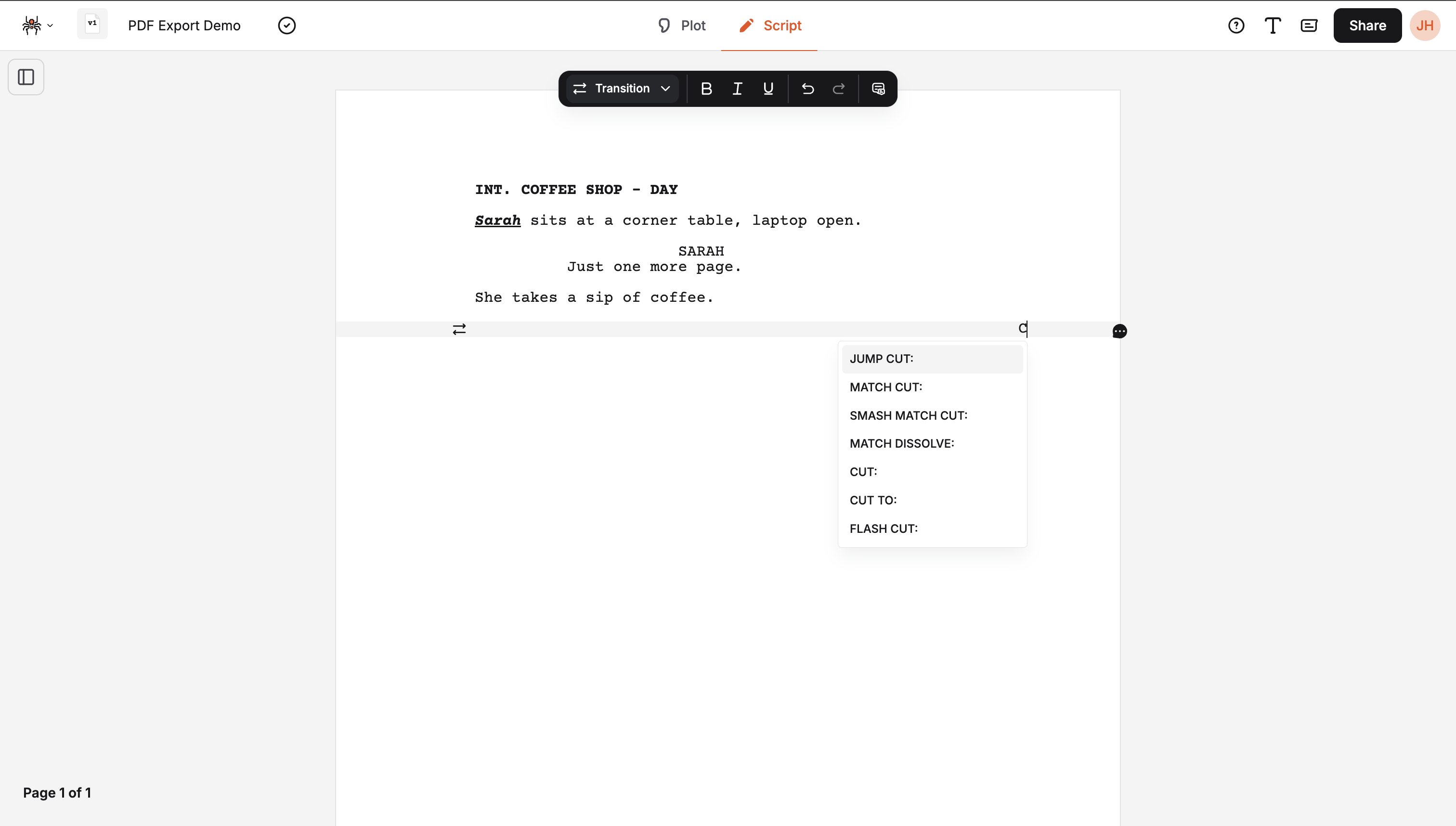
Section titled “Transition Suggestions”When typing transitions, Jujukraft provides suggestions for:
- Standard transitions (FADE OUT, CUT TO, DISSOLVE TO)
- Common variations (SMASH CUT, JUMP CUT)
Common Transitions
Section titled “Common Transitions”- FADE OUT - End of scene
- CUT TO - Quick scene change
- DISSOLVE TO - Gradual scene change
- SMASH CUT TO - Abrupt scene change
Troubleshooting Elements
Section titled “Troubleshooting Elements”Common Issues
Section titled “Common Issues”Wrong element inserted:
- Check your current position in the script
- Verify the element flow rules
- Use manual shortcuts to override
Suggestions not appearing:
- Verify you’re typing in the correct element
- Try refreshing the page
Element not following expected pattern:
- Review the rule-based logic
- Check if you’re at the end of an element
- Use keyboard shortcuts for manual control
Formatting issues:
- Use keyboard shortcuts for manual formatting
- Verify proper element structure
Manual Override
Section titled “Manual Override”If the rule-based insertion doesn’t work as expected:
- Use keyboard shortcuts to manually insert elements:
Cmd+1- Scene headingCmd+2- ActionCmd+3- CharacterCmd+4- ParentheticalCmd+5- DialogueCmd+6- TransitionCmd+7- General
Ctrl+1- Scene headingCtrl+2- ActionCtrl+3- CharacterCtrl+4- ParentheticalCtrl+5- DialogueCtrl+6- TransitionCtrl+7- General
- Force element insertion by pressing Enter at the end of an element
Learn more: See our complete Keyboard Shortcuts guide for all available shortcuts.
Best Practices
Section titled “Best Practices”Writing with Rule-Based Logic
Section titled “Writing with Rule-Based Logic”- Understand the element flow rules
- Use standard screenplay format
- Follow industry conventions
- Let the editor guide your structure
Element Organization
Section titled “Element Organization”- Scene headings start every scene
- Action blocks describe what happens
- Character names introduce speakers
- Dialogue follows character names
- Parentheticals provide direction when needed
Quality Control
Section titled “Quality Control”- Check element flow consistency
- Verify character consistency
Next Steps
Section titled “Next Steps”- Learn about Auto-formatting
- Master Keyboard Shortcuts