Master Jujukraft’s keyboard shortcuts to write faster and more efficiently.
Use these shortcuts to quickly format screenplay elements:
| Shortcut | Action | Description |
|---|
Cmd+1 | Scene Heading | Format as scene heading |
Cmd+2 | Action | Format as action block |
Cmd+3 | Character | Format as character name |
Cmd+4 | Parenthetical | Format as parenthetical |
Cmd+5 | Dialogue | Format as dialogue |
Cmd+6 | Transition | Format as transition |
Cmd+7 | General | Format as general text |
| Shortcut | Action | Description |
|---|
Ctrl+1 | Scene Heading | Format as scene heading |
Ctrl+2 | Action | Format as action block |
Ctrl+3 | Character | Format as character name |
Ctrl+4 | Parenthetical | Format as parenthetical |
Ctrl+5 | Dialogue | Format as dialogue |
Ctrl+6 | Transition | Format as transition |
Ctrl+7 | General | Format as general text |
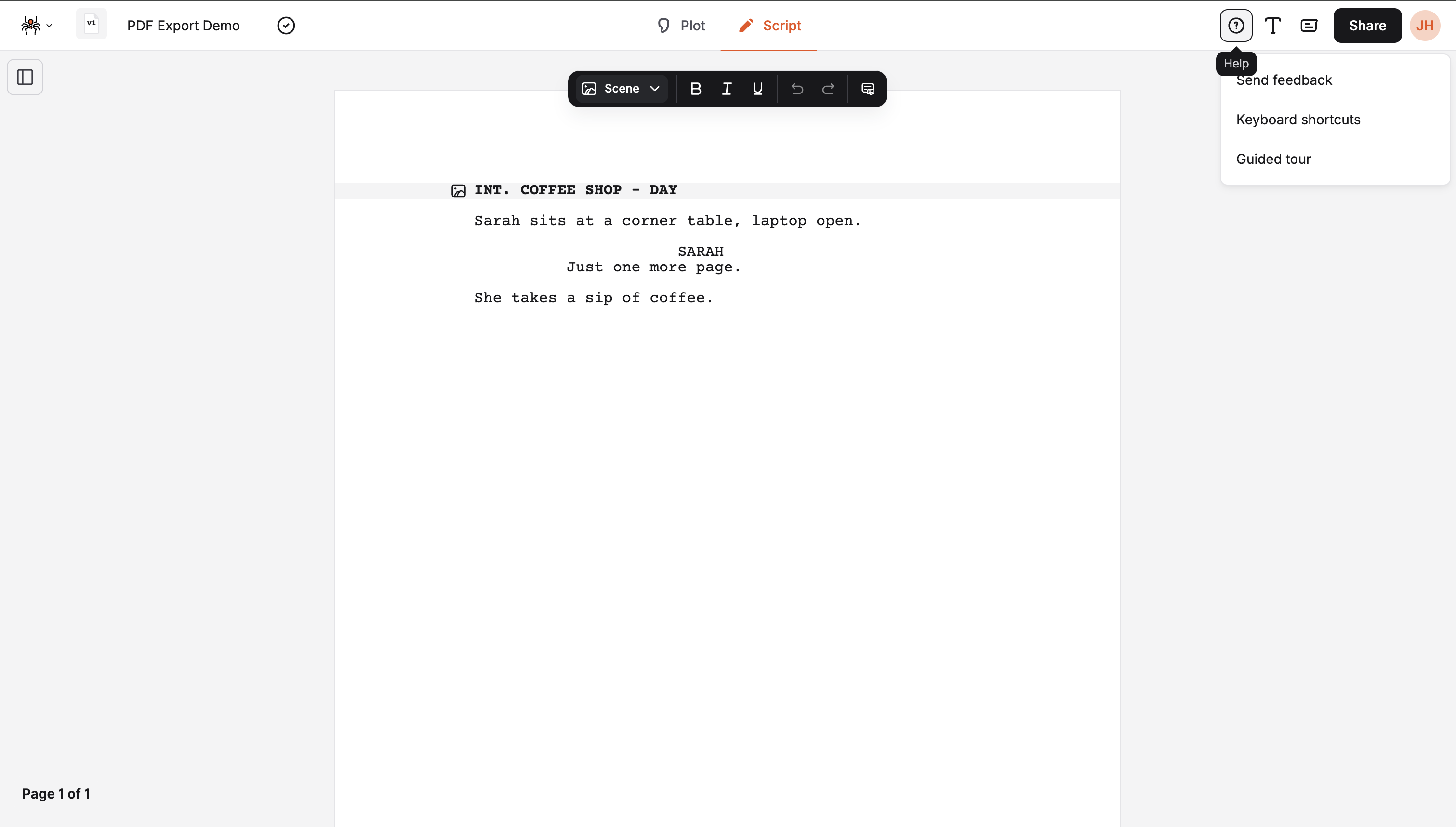
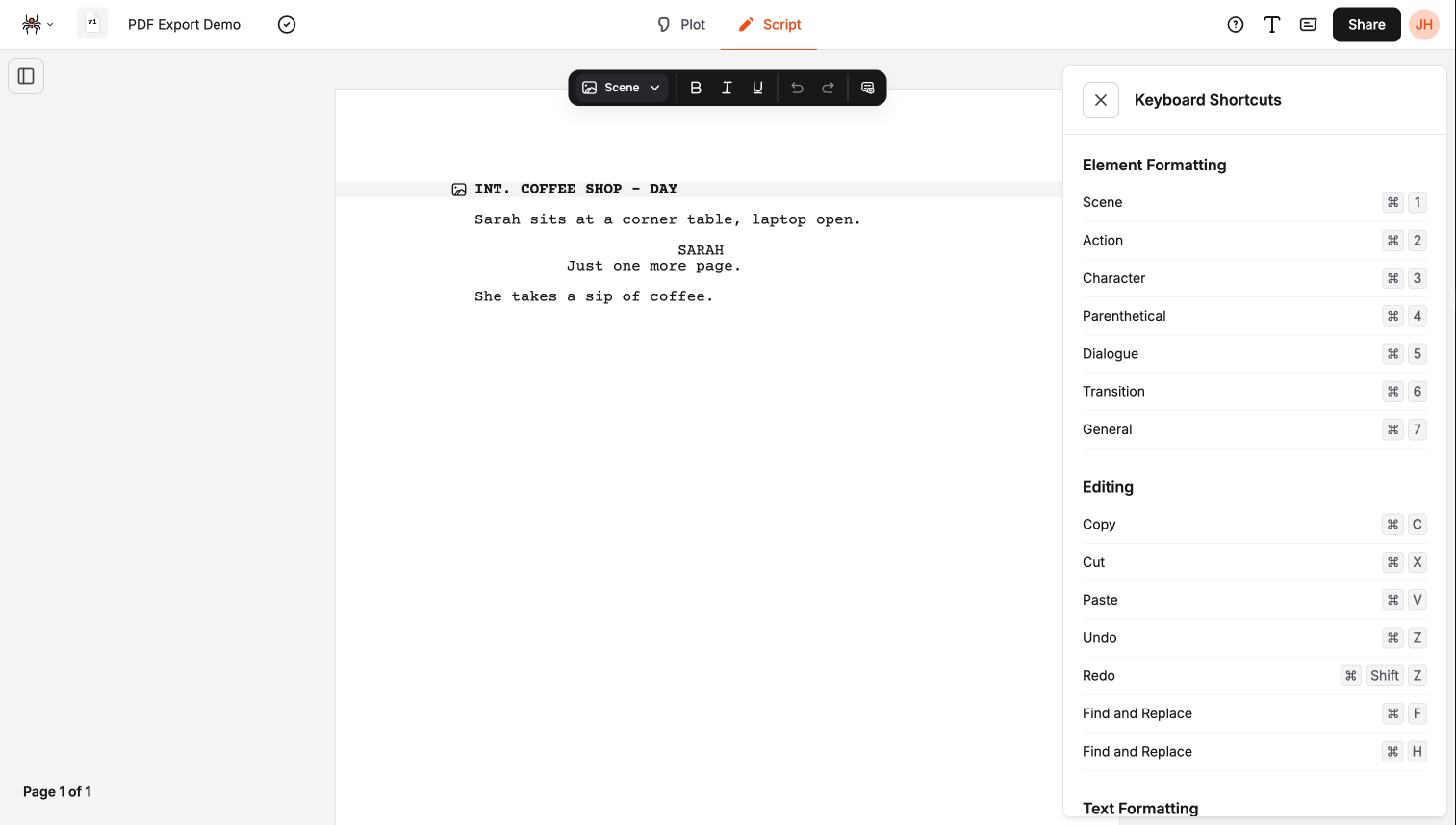
- Place your cursor within the element you want to format
- Press the shortcut for the desired element type
- The element is automatically formatted according to industry standards
| Shortcut | Action | Description |
|---|
Enter | New Element | Create new element based on rules |
Shift+Enter | Soft Break | Create new line within same element |
| Shortcut | Action | Description |
|---|
Enter | New Element | Create new element based on rules |
Shift+Enter | Soft Break | Create new line within same element |
| Shortcut | Action | Description |
|---|
Tab | Accept Suggestion | Accept auto-completion |
Escape | Cancel Suggestion | Cancel auto-completion |
| Shortcut | Action | Description |
|---|
Tab | Accept Suggestion | Accept auto-completion |
Escape | Cancel Suggestion | Cancel auto-completion |
| Shortcut | Action | Description |
|---|
Cmd+Home | Beginning of Document | Jump to start of script |
Cmd+End | End of Document | Jump to end of script |
Cmd+F | Find | Search for text in script |
| Shortcut | Action | Description |
|---|
Ctrl+Home | Beginning of Document | Jump to start of script |
Ctrl+End | End of Document | Jump to end of script |
Ctrl+F | Find | Search for text in script |
| Shortcut | Action | Description |
|---|
Cmd+Z | Undo | Undo last action |
Cmd+Shift+Z | Redo | Redo last action |
Cmd+X | Cut | Cut selected text |
Cmd+C | Copy | Copy selected text |
Cmd+V | Paste | Paste text |
Cmd+A | Select All | Select entire document |
| Shortcut | Action | Description |
|---|
Ctrl+Z | Undo | Undo last action |
Ctrl+Y | Redo | Redo last action |
Ctrl+X | Cut | Cut selected text |
Ctrl+C | Copy | Copy selected text |
Ctrl+V | Paste | Paste text |
Ctrl+A | Select All | Select entire document |
| Shortcut | Action | Description |
|---|
Cmd+B | Bold | Make selected text bold |
Cmd+I | Italic | Make selected text italic |
Cmd+U | Underline | Underline selected text |
| Shortcut | Action | Description |
|---|
Ctrl+B | Bold | Make selected text bold |
Ctrl+I | Italic | Make selected text italic |
Ctrl+U | Underline | Underline selected text |
| Shortcut | Action | Description |
|---|
Shift+Arrow | Extend Selection | Extend selection by character |
Cmd+Shift+Arrow | Extend by Word | Extend selection by word |
Cmd+Shift+Left | Select to Line Start | Select to beginning of line |
Cmd+Shift+Right | Select to Line End | Select to end of line |
| Shortcut | Action | Description |
|---|
Shift+Arrow | Extend Selection | Extend selection by character |
Ctrl+Shift+Arrow | Extend by Word | Extend selection by word |
Shift+Home | Select to Line Start | Select to beginning of line |
Shift+End | Select to Line End | Select to end of line |
| Shortcut | Action | Description |
|---|
Cmd+Shift+Tab | Switch Views | Switch between Write/Plot/Share |
Cmd+Shift+C | Character Panel | Open character management |
Cmd+Shift+B | Beat Board | Open beat board |
Cmd+Shift+S | Settings | Open settings panel |
| Shortcut | Action | Description |
|---|
Ctrl+Shift+Tab | Switch Views | Switch between Write/Plot/Share |
Ctrl+Shift+C | Character Panel | Open character management |
Ctrl+Shift+B | Beat Board | Open beat board |
Ctrl+Shift+S | Settings | Open settings panel |
| Shortcut | Action | Description |
|---|
Cmd+Plus | Zoom In | Increase text size |
Cmd+Minus | Zoom Out | Decrease text size |
Cmd+0 | Reset Zoom | Reset to default size |
| Shortcut | Action | Description |
|---|
Ctrl+Plus | Zoom In | Increase text size |
Ctrl+Minus | Zoom Out | Decrease text size |
Ctrl+0 | Reset Zoom | Reset to default size |
- Learn essential shortcuts first (Cmd+1 through Cmd+7 on Mac, Ctrl+1 through Ctrl+7 on Windows/Linux)
- Practice regularly to build muscle memory
- Use shortcuts consistently for faster writing
- Place cursor within elements to format them quickly
- Element formatting: Cmd+1 through Cmd+7 (Mac) / Ctrl+1 through Ctrl+7 (Windows/Linux)
- Text formatting: Cmd+B, Cmd+I, Cmd+U (Mac) / Ctrl+B, Ctrl+I, Ctrl+U (Windows/Linux)
- Navigation: Cmd+Arrow keys (Mac) / Ctrl+Arrow keys (Windows/Linux)
- Editing: Standard Cmd+X, Cmd+C, Cmd+V (Mac) / Ctrl+X, Ctrl+C, Ctrl+V (Windows/Linux)
- View switching: Cmd+Tab (Mac) / Ctrl+Tab (Windows/Linux)
- Element flow: Enter creates new elements based on element flow rules
Shortcuts not working:
- Check if shortcuts are enabled
- Verify no conflicts with browser shortcuts
- Try refreshing the page
- Check keyboard layout settings
- Contact support if needed
Essential Formatting:
Cmd+1 - Scene HeadingCmd+2 - ActionCmd+3 - CharacterCmd+4 - ParentheticalCmd+5 - DialogueCmd+6 - TransitionCmd+7 - General
Navigation:
Cmd+Tab - Switch ViewsCmd+Home/End - Document Start/EndCmd+Up/Down - Previous/Next Scene
Editing:
Cmd+Z/Shift+Z - Undo/RedoCmd+X/C/V - Cut/Copy/PasteCmd+A - Select All
Text Formatting:
Cmd+B - BoldCmd+I - ItalicCmd+U - Underline
Essential Formatting:
Ctrl+1 - Scene HeadingCtrl+2 - ActionCtrl+3 - CharacterCtrl+4 - ParentheticalCtrl+5 - DialogueCtrl+6 - TransitionCtrl+7 - General
Editing:
Ctrl+Z/Y - Undo/RedoCtrl+X/C/V - Cut/Copy/PasteCtrl+A - Select All
Text Formatting:
Ctrl+B - BoldCtrl+I - ItalicCtrl+U - Underline