

Toolbar
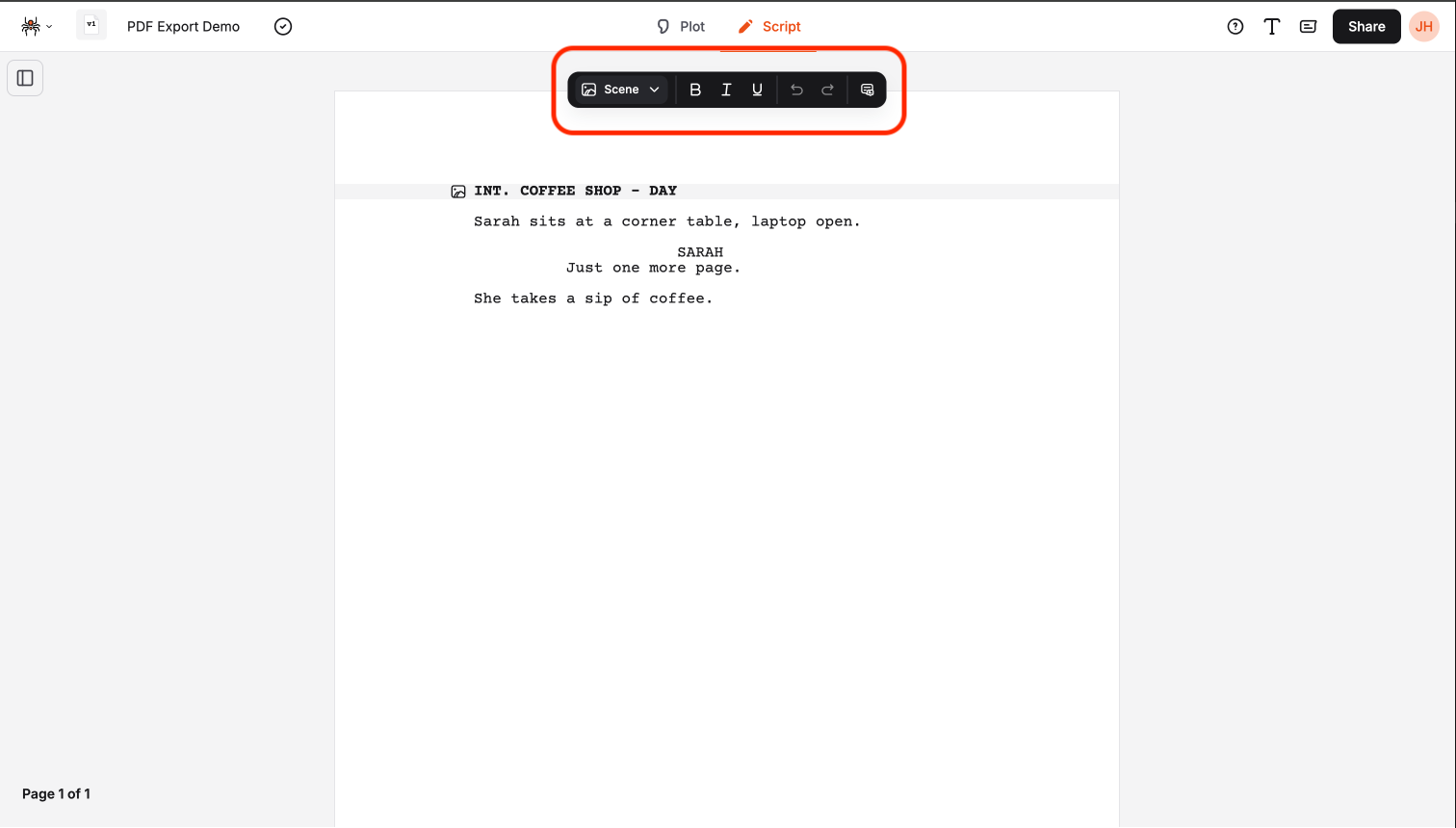
The script editor toolbar provides quick access to formatting options, element types, and editing tools. It’s positioned at the top of the script editor for easy access while writing.
Toolbar Overview
Section titled “Toolbar Overview”The toolbar contains several sections separated by dividers:
- Element Selector: Choose the current element type
- Text Formatting: Bold, italic, and underline options
- History Controls: Undo and redo actions
- Dual Dialogue: Group dialogue elements together
Element Selector
Section titled “Element Selector”The element selector is the primary tool for changing element types:
Using the Element Selector
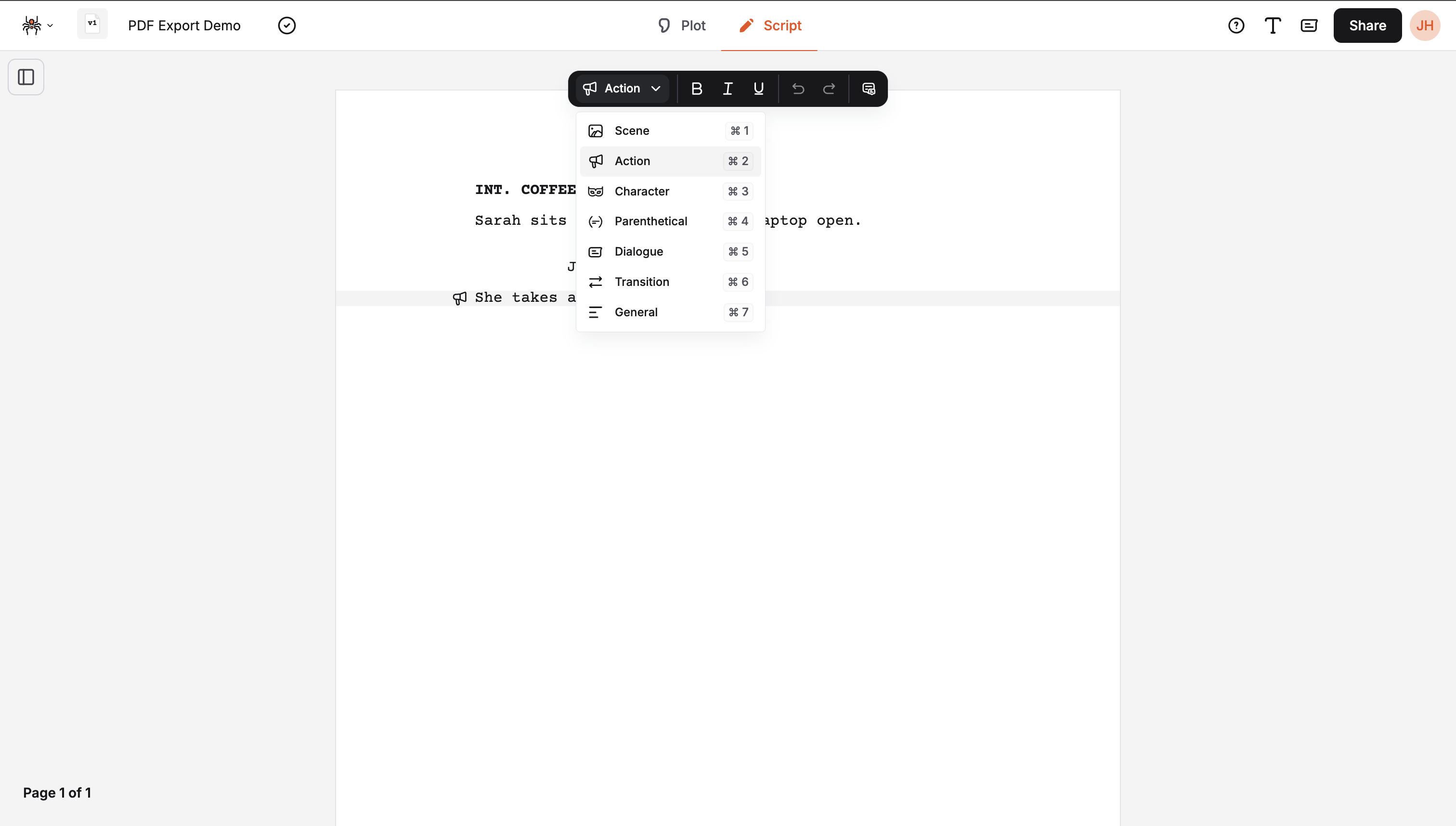
Section titled “Using the Element Selector”- Click the dropdown to open the element list
- Select an element type from the list
- The current element changes to the selected type
- No text selection required - works with cursor position
- Keyboard shortcuts are shown for each element
Available Elements
Section titled “Available Elements”The toolbar includes all standard screenplay elements:
- Scene (
Cmd/Ctrl+1): Scene headings and locations - Action (
Cmd/Ctrl+2): Action descriptions and character movements - Character (
Cmd/Ctrl+3): Character names for dialogue - Parenthetical (
Cmd/Ctrl+4): Character directions and emotions - Dialogue (
Cmd/Ctrl+5): Character speech - Transition (
Cmd/Ctrl+6): Scene transitions - General (
Cmd/Ctrl+7): General text elements
Element Selector Behavior
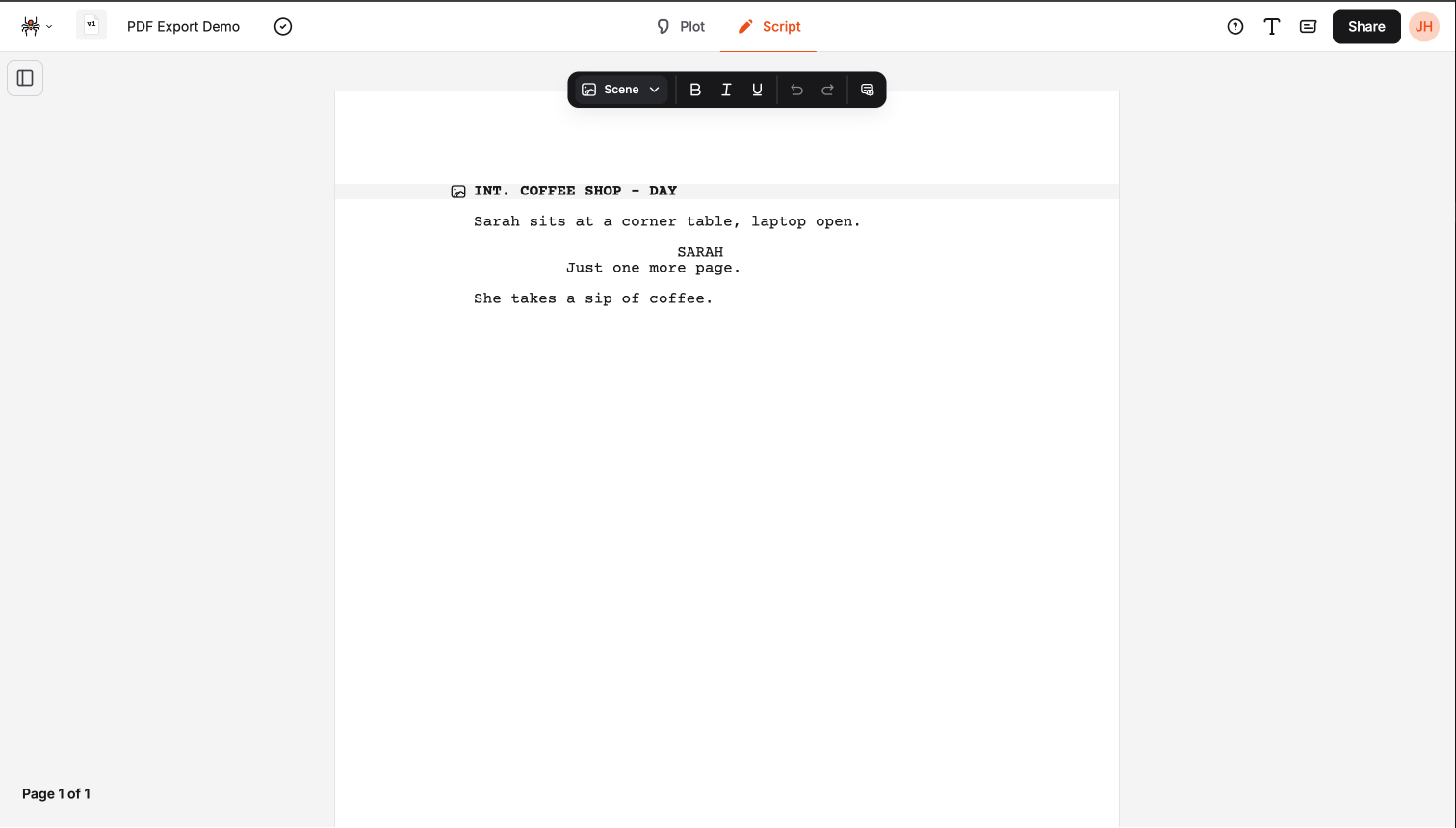
Section titled “Element Selector Behavior”- Shows current element: Displays the type of the element at cursor position
- No selection required: Works with cursor position, not text selection
- Updates automatically: Changes when you move to different elements
- Disabled when appropriate: Grayed out when no valid element is available or multiple elements are selected
- Keyboard shortcuts: Shows platform-specific shortcuts (Cmd/Ctrl)
Text Formatting
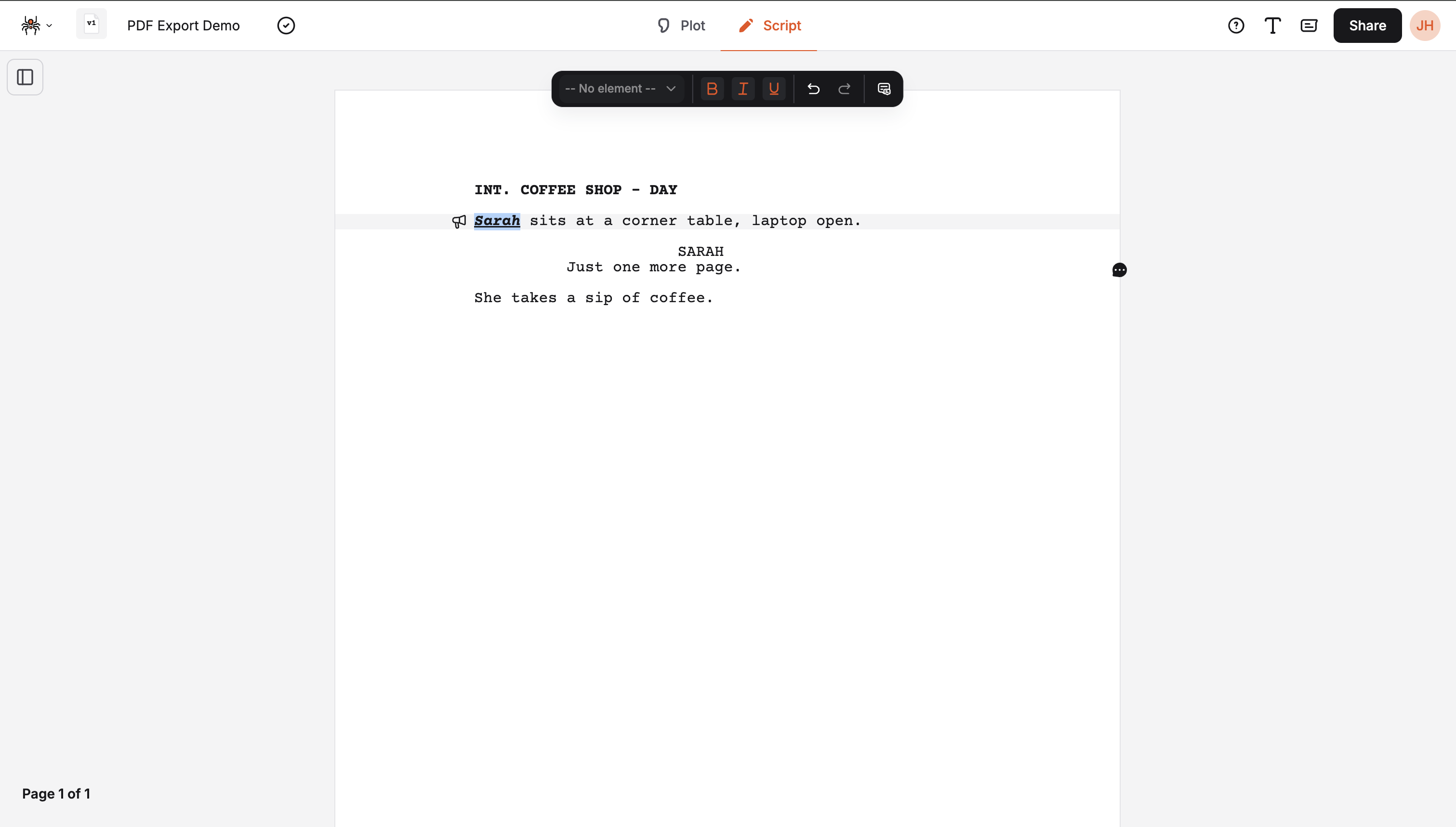
Section titled “Text Formatting”The text formatting section provides basic text styling options:
Formatting Options
Section titled “Formatting Options”- Bold (
Cmd/Ctrl+B): Makes text bold - Italic (
Cmd/Ctrl+I): Makes text italic - Underline (
Cmd/Ctrl+U): Underlines text
Using Text Formatting
Section titled “Using Text Formatting”- Select text in your script
- Click a formatting button or use keyboard shortcuts
- Format is applied to the selected text
- Active formats are highlighted in the toolbar
Formatting Behavior
Section titled “Formatting Behavior”- Toggle formatting: Click again to remove formatting
- Multiple formats: Combine bold, italic, and underline
- Visual feedback: Active formats are highlighted in the toolbar
- Keyboard shortcuts: Quick access without using the toolbar
History Controls
Section titled “History Controls”The history section provides undo and redo functionality:
Undo and Redo
Section titled “Undo and Redo”- Undo (
Cmd/Ctrl+Z): Reverses the last action - Redo (
Cmd/Ctrl+Y): Reapplies a previously undone action
History Behavior
Section titled “History Behavior”- Disabled when empty: Buttons are grayed out when no actions are available
- Multiple levels: Undo/redo through multiple actions
- Keyboard shortcuts: Quick access to history controls
- Visual feedback: Buttons show when actions are available
Dual Dialogue
Section titled “Dual Dialogue”The dual dialogue feature allows you to group dialogue elements:
Using Dual Dialogue
Section titled “Using Dual Dialogue”- Position your cursor in a dialogue element
- Click the dual dialogue button in the toolbar
- Automatically selects the next dialogue group (character + dialogue)
- Elements are grouped into a dual dialogue structure
- Click again to ungroup the elements
Dual Dialogue Behavior
Section titled “Dual Dialogue Behavior”- Groups dialogue: Combines multiple dialogue elements
- Visual indicator: Button is highlighted when dual dialogue is active
- Toggle functionality: Click to group, click again to ungroup
- Automatic formatting: Maintains proper screenplay formatting
Toolbar Positioning
Section titled “Toolbar Positioning”Default Position
Section titled “Default Position”- Top center: Positioned at the top of the script editor
- Always visible: Stays visible while scrolling
- Responsive: Adapts to different screen sizes
- Z-index: Appears above script content
Toolbar Tips
Section titled “Toolbar Tips”Efficient Workflow
Section titled “Efficient Workflow”- Use keyboard shortcuts: Faster than clicking toolbar buttons
- Watch the element selector: Shows your current element type
- Format as you write: Apply formatting while typing
- Use undo liberally: Experiment with confidence
Best Practices
Section titled “Best Practices”- Check element type: Always verify you’re in the right element
- Format consistently: Use the same formatting throughout
- Use dual dialogue sparingly: Only when necessary for clarity
Next Steps
Section titled “Next Steps”- Learn about the Element Menu
- Master Keyboard Shortcuts
- Explore Element Detection