

Managing Versions
Once version history is open, each version row includes actions for organizing and branching your drafts.
Version Actions Menu
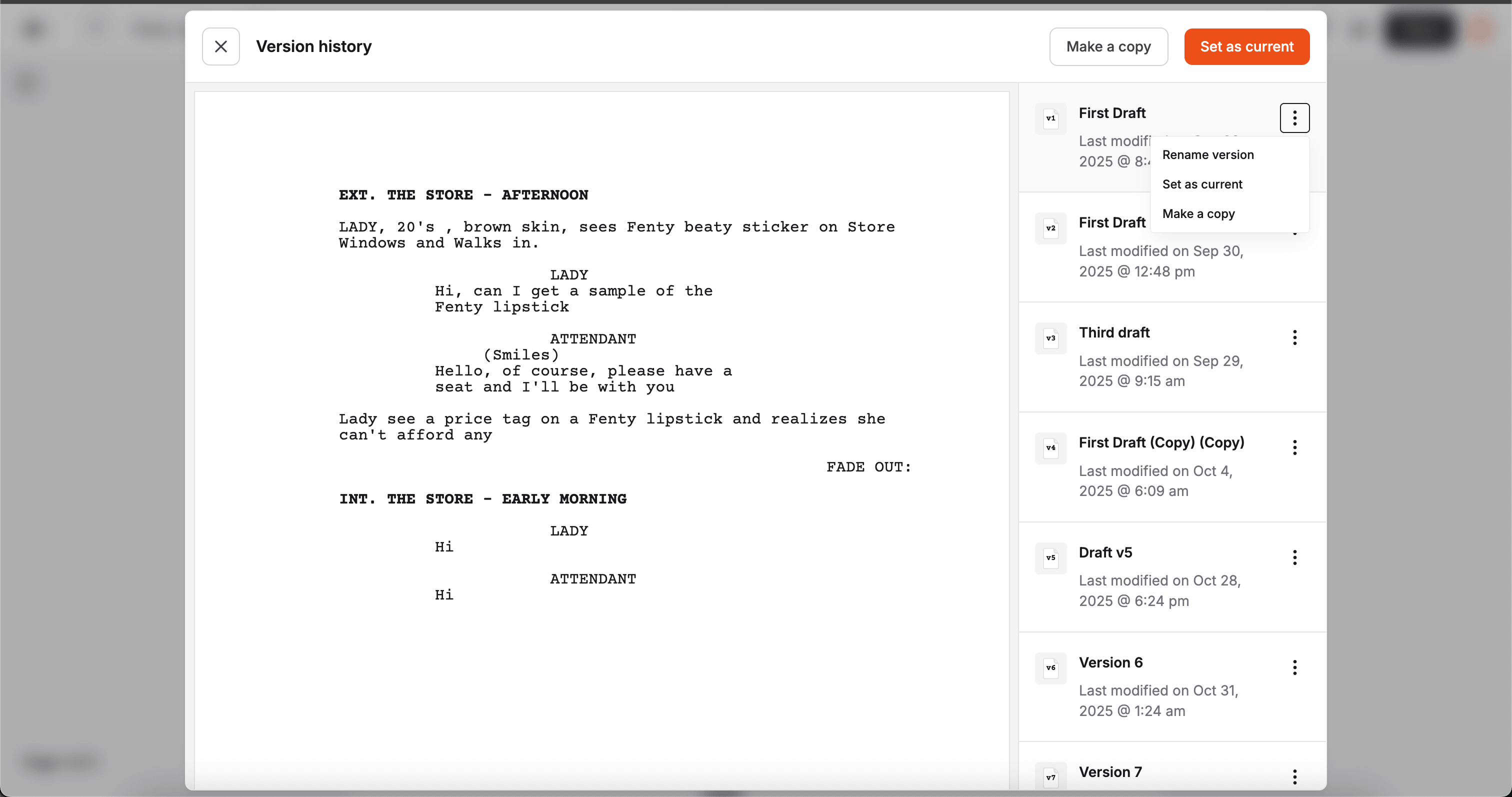
Section titled “Version Actions Menu”Use the three-dot menu on a version row to access:
- Rename version: Keep draft names clear and searchable
- Set as current: Switch the active script version
- Make a copy: Create a new branch from an existing draft
Renaming a Version
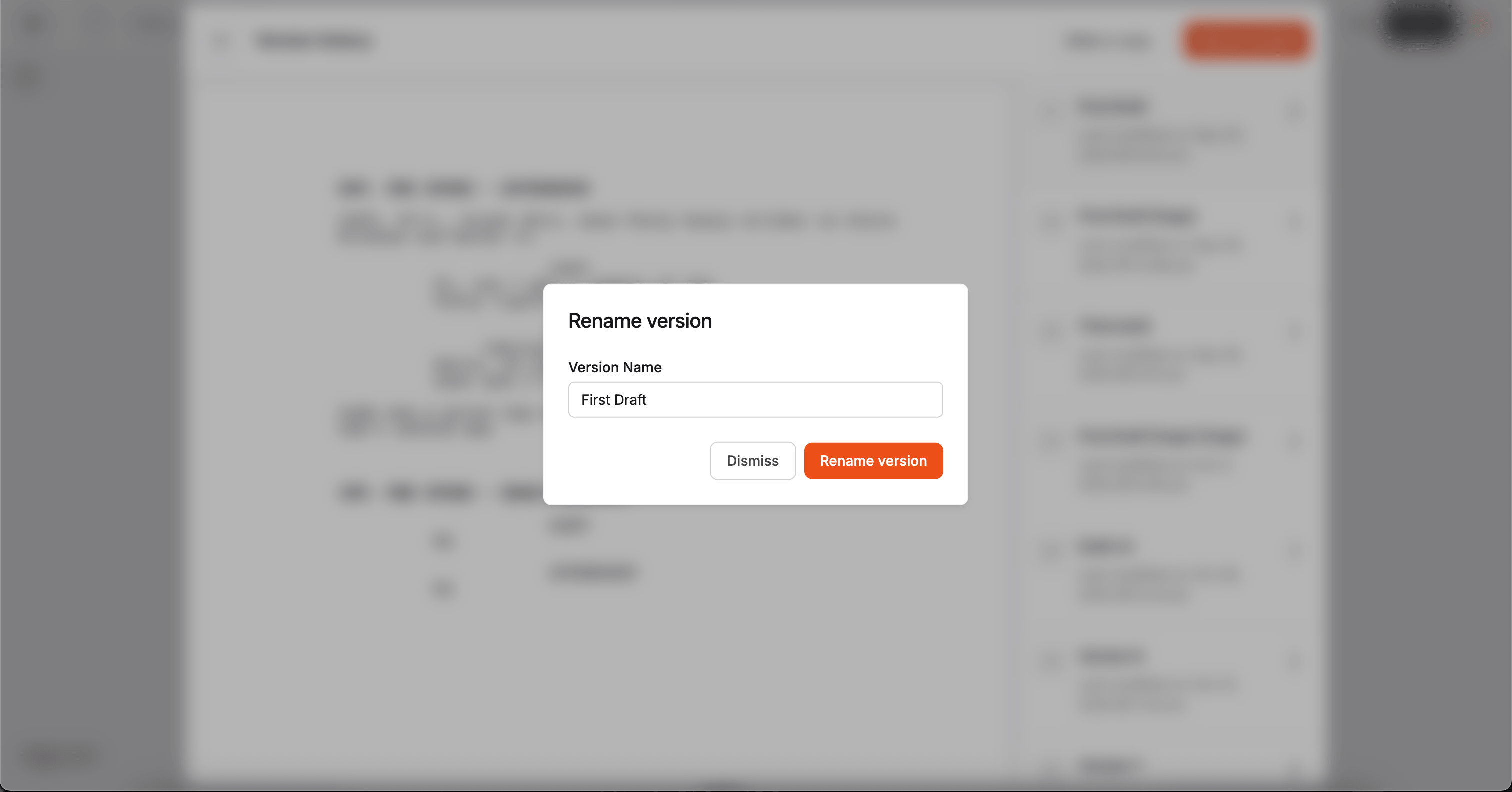
Section titled “Renaming a Version”Renaming keeps your timeline understandable when many revisions exist.
- Open version history
- Open the version row actions menu
- Select Rename version
- Enter a descriptive name and confirm
Making a Copy
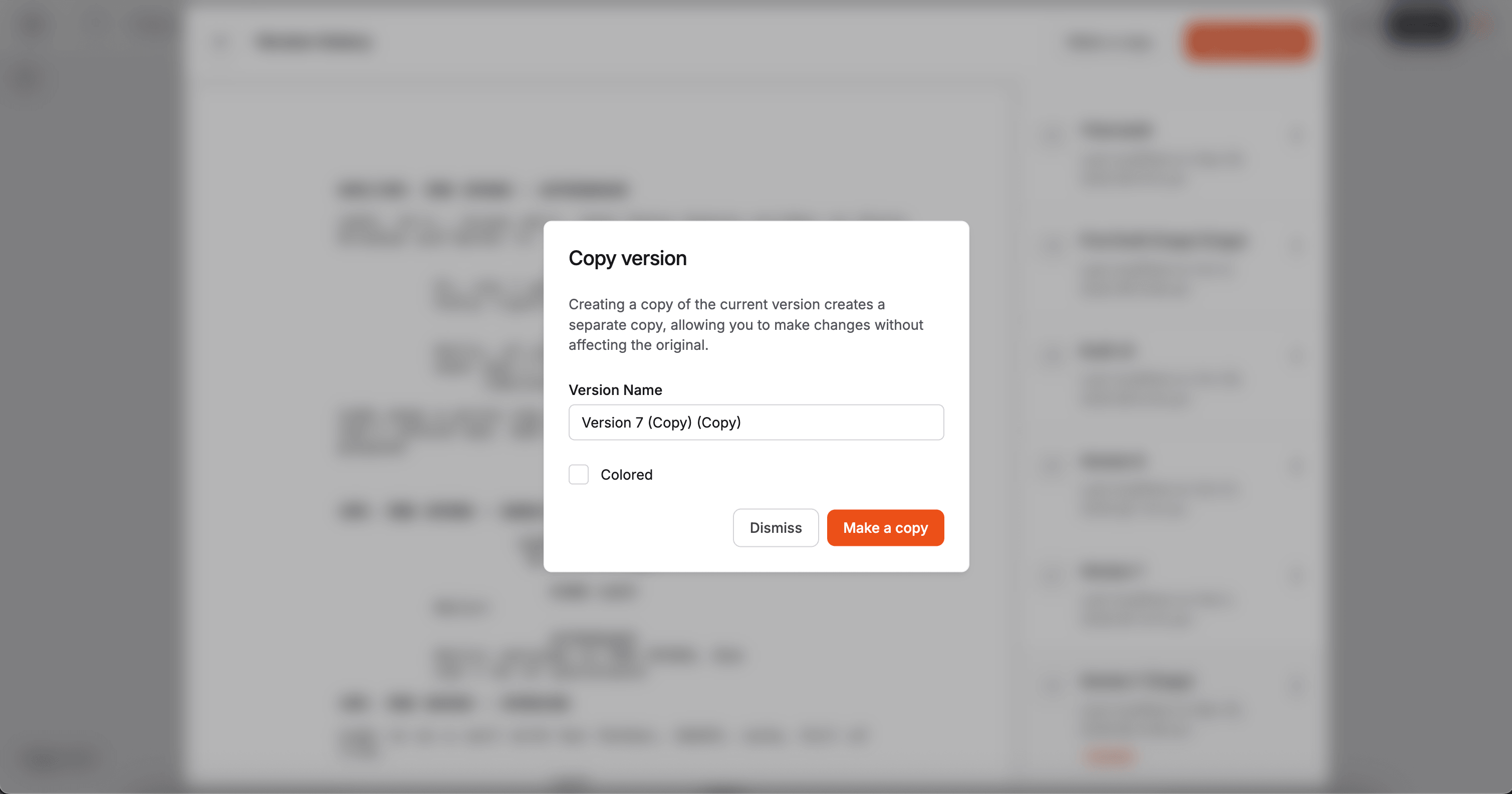
Section titled “Making a Copy”Copying creates a separate editable draft so you can experiment without overwriting the source version.
- Open version history
- Select a version
- Click Make a copy (top bar) or use the row actions menu
- Confirm the new copy name
Setting a Current Version
Section titled “Setting a Current Version”Use Set as current when you want one version to become the active working branch for your project.
- Available from both the top action button and row actions
- Helpful after reviewing or copying drafts
- Works best when your versions are clearly named
Recommended Workflow
Section titled “Recommended Workflow”- Start with milestone names instead of generic labels (
v3,v4, etc.) - Copy before risky edits
- Promote only stable drafts to Current
- Rename immediately after major revision passes
Next Steps
Section titled “Next Steps”- Review Version History for layout and navigation
- Explore Export as PDF when you’re ready to share a draft externally