

Version History
Version history helps you safely track major drafts of your script over time. You can review older snapshots, compare naming patterns, and choose the right point to continue writing from.
Where to Find Version History
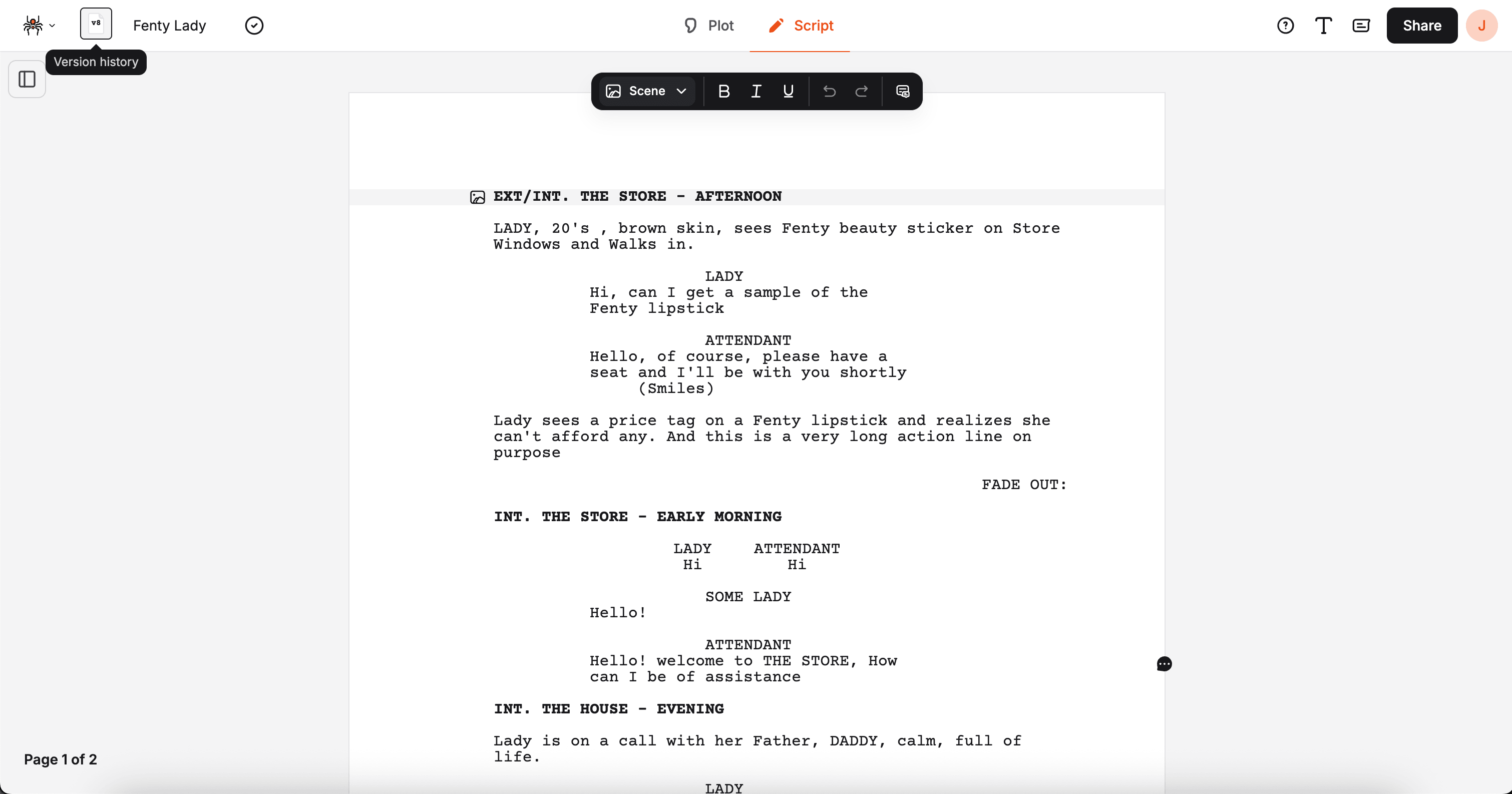
Section titled “Where to Find Version History”In the script editor, use the version badge button in the header area to open version history.
- Desktop menu access: Open the project menu and choose Version history
- Mobile menu access: Open the bottom-sheet menu and choose Version history
- Quick visual cue: The button shows your active version icon and
vnumber
Version History Layout
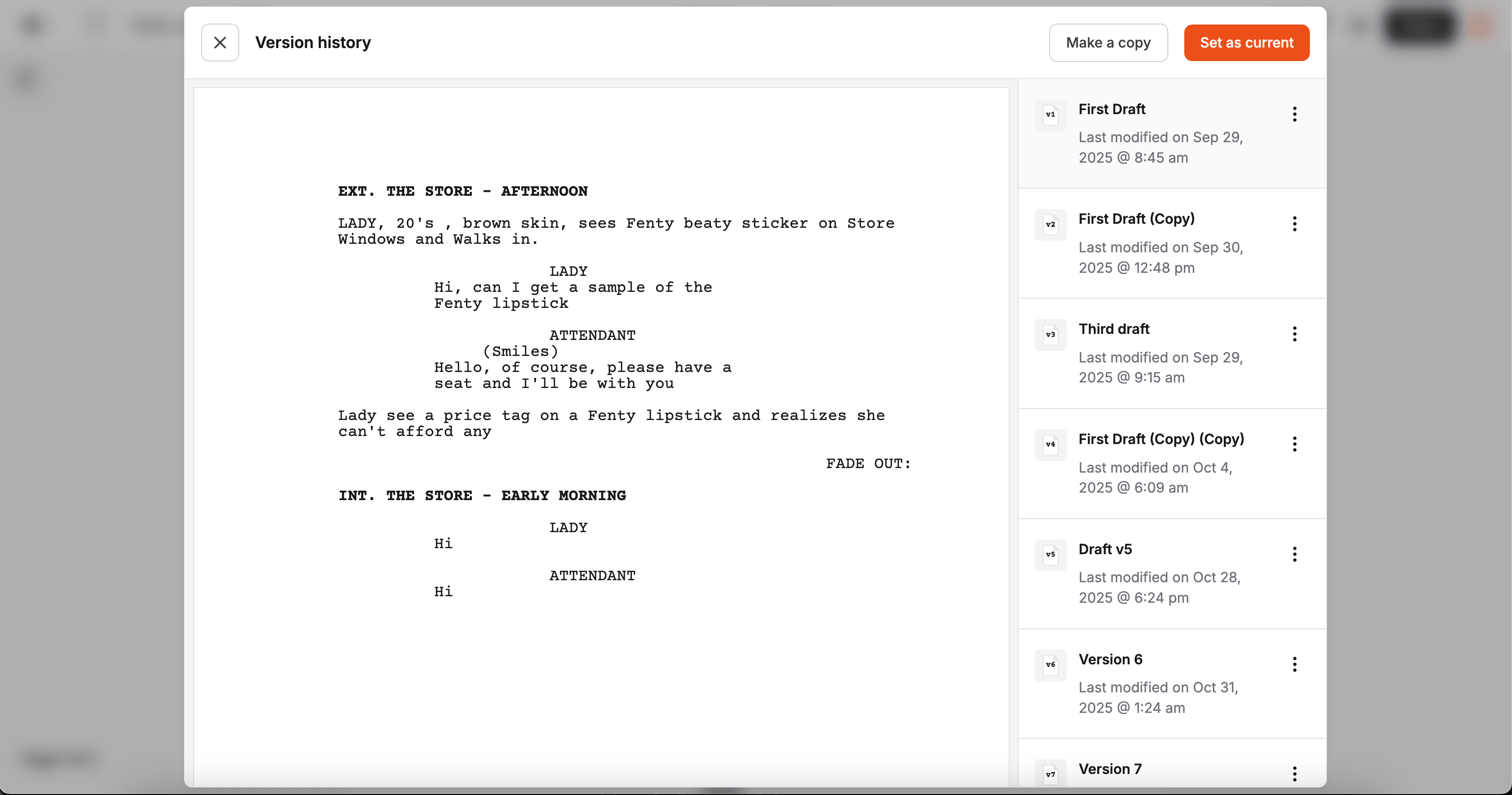
Section titled “Version History Layout”When opened, version history appears as a modal with two main panels:
- Preview panel (left): Shows the selected version content
- Version list (right): Shows saved versions with name and last modified date
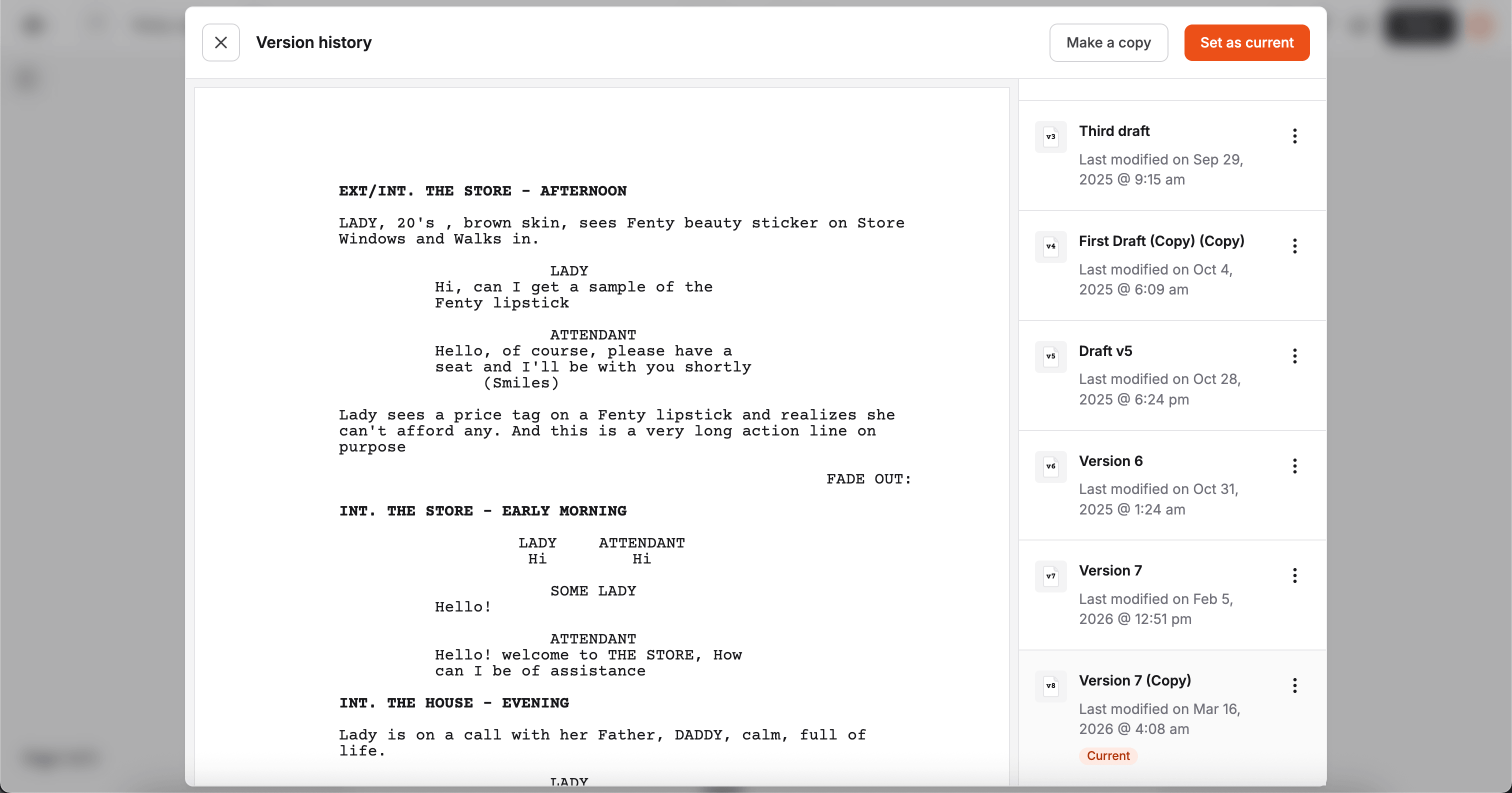
The active project version is labeled Current.
When a version is active, you’ll see a Current badge directly on that version row in the list.
Navigating Versions
Section titled “Navigating Versions”- Click a version row to load its preview
- Scroll the right panel to browse older versions
- Use names and modified timestamps to identify the right draft quickly
Tips for Better Version Tracking
Section titled “Tips for Better Version Tracking”- Use clear names for milestones (for example:
First Draft,Table Read Pass,Producer Notes) - Create versions before major rewrites
- Keep one clearly named stable version as your fallback point
Next Steps
Section titled “Next Steps”- Learn the workflow for Managing Versions
- Review Keyboard Shortcuts for faster editing between version saves