

Offline Mode
When your connection drops, Jujukraft keeps you writing. Your changes are saved on your device and sync back to the cloud when you’re back online.
What works offline
Section titled “What works offline”- Write and edit your script — keep typing, editing, undo/redo, and navigating your project as normal.
- Autosave — your work is saved locally so it isn’t lost even if the tab closes or refreshes.
- Editing tools — find/replace, formatting, and other on-page tools all work without internet.
- Export — you can still export your script and download the file while offline.
What needs internet
Section titled “What needs internet”Some actions require a connection. These are automatically disabled when you’re offline, with a tooltip explaining why.
- Create new project / Import — starting or importing a project requires the server.
- Sharing & collaboration — sharing links, managing access, and real-time co-writing require internet.
- Version history actions — Make a copy, Set as current, Refresh, and the row actions menu all require internet.
- Send feedback / Resources — opening the feedback form or external resources requires internet.
Reconnecting and syncing
Section titled “Reconnecting and syncing”Once you’re back online, keep the tab open for a moment — your changes will sync automatically. If something still looks out of date, refresh the page.
How to tell offline mode is ready
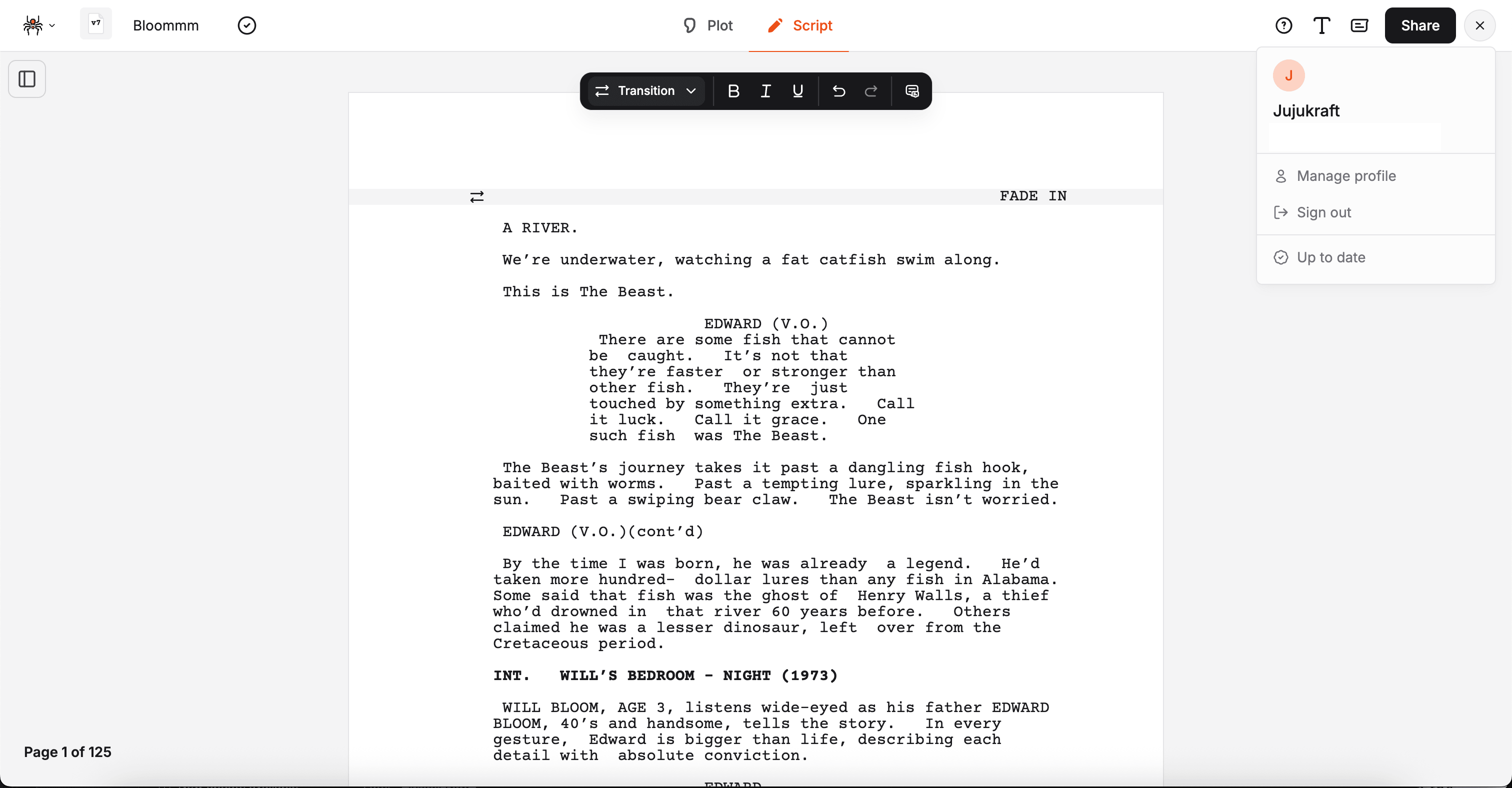
Section titled “How to tell offline mode is ready”When the app is fully cached and ready to work offline, your profile menu shows an Up to date status at the bottom. If you see this, you’re good to go — your script and the editor will load even without a connection.
Install Jujukraft as an app
Section titled “Install Jujukraft as an app”Installing Jujukraft gives you quicker access and a more app-like experience, especially on unreliable connections.
Install from within the app
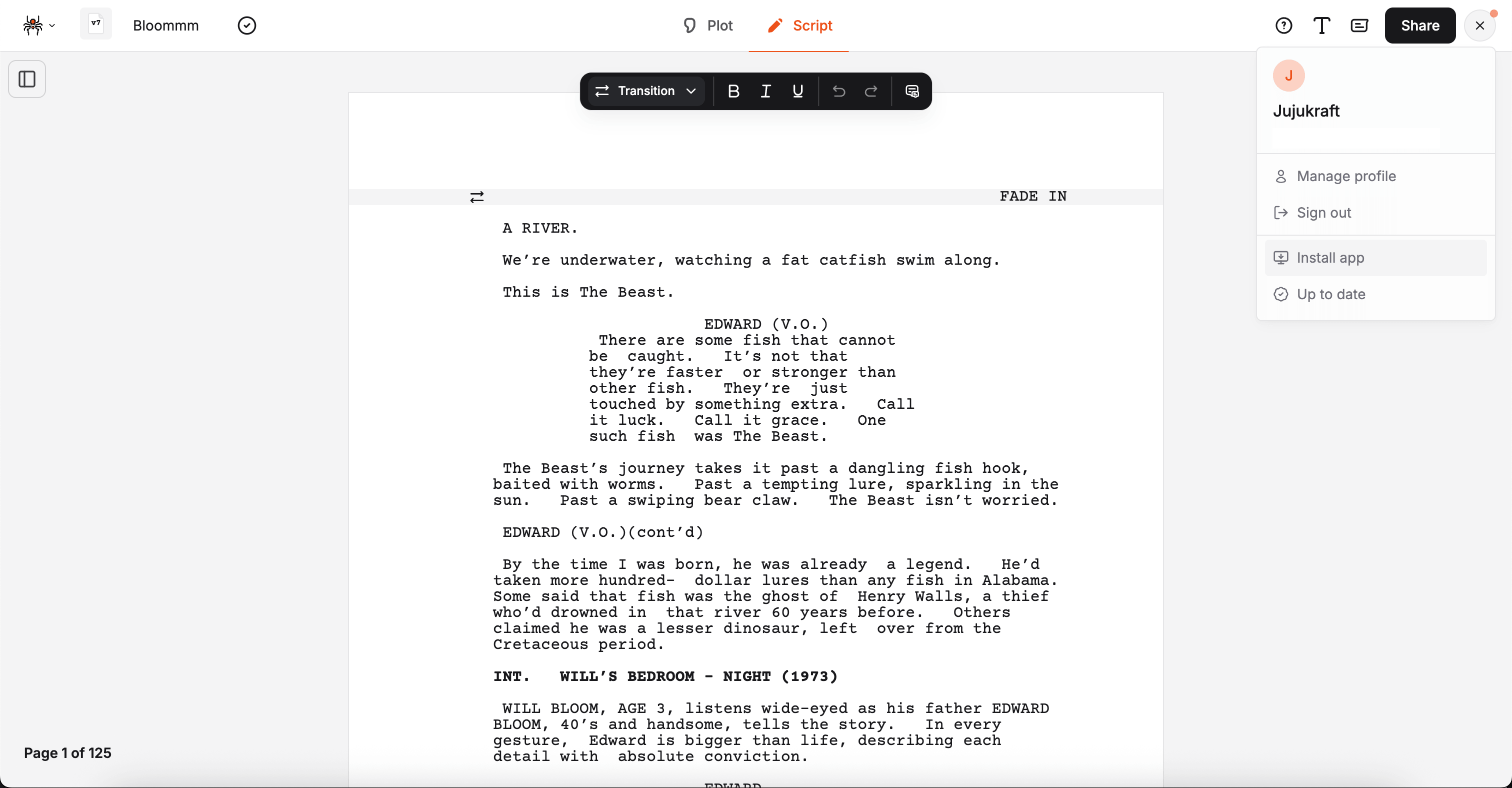
Section titled “Install from within the app”Open your profile menu (your avatar in the top-right corner). If installation is available on your device and browser, you’ll see an Install app option — click it to install.
Keep the app up to date
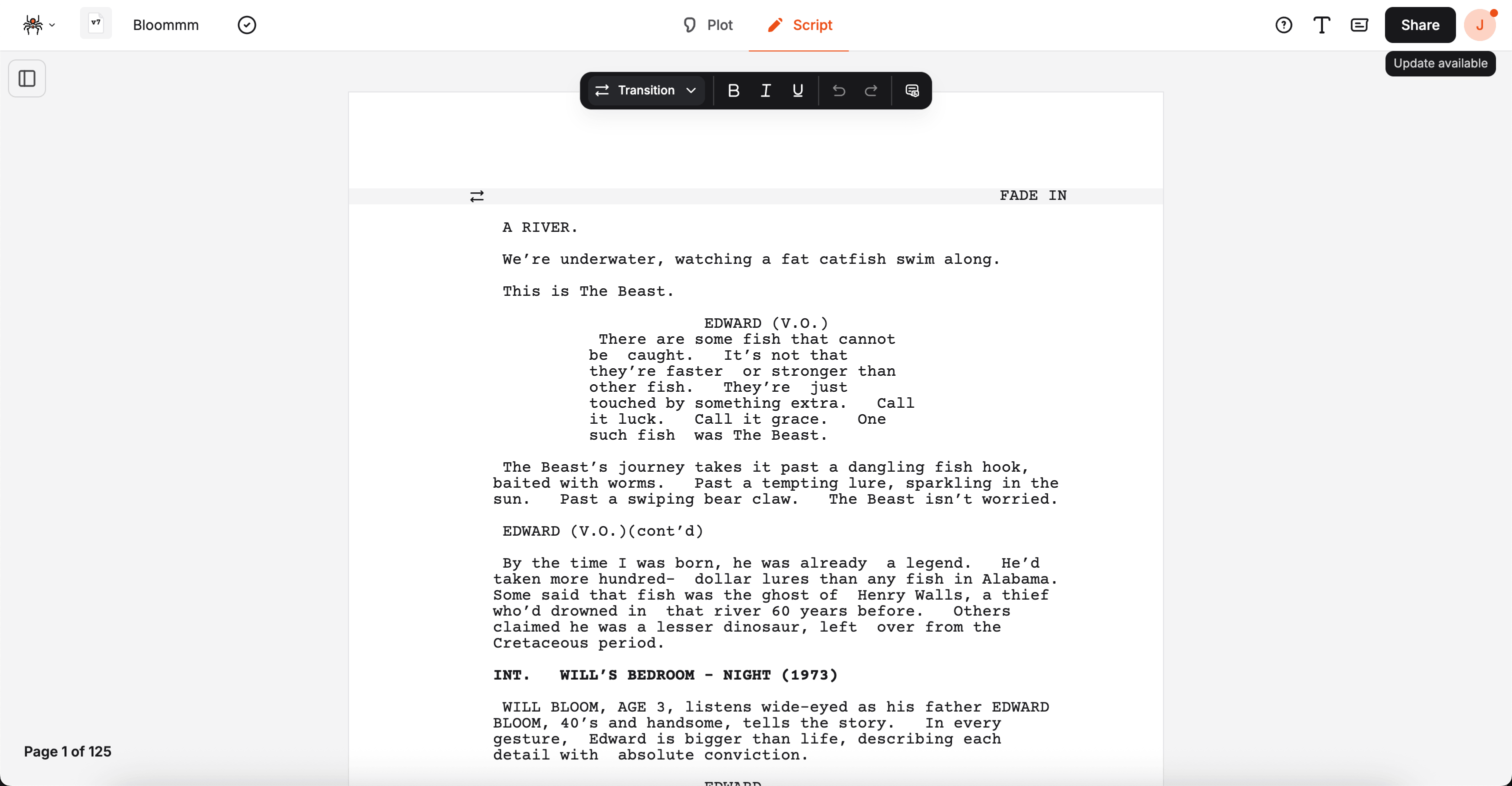
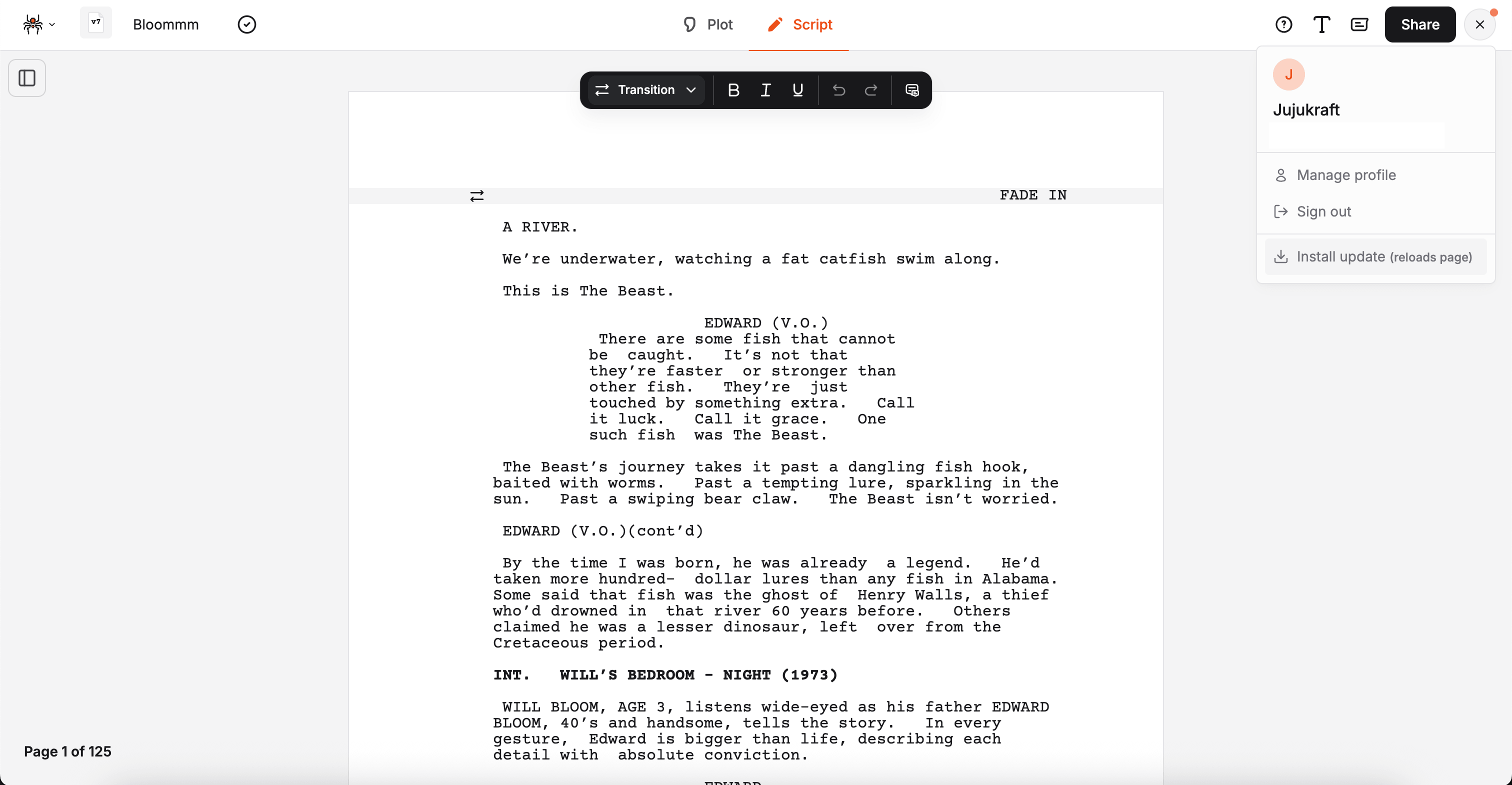
Section titled “Keep the app up to date”When an update is ready, a dot appears on your profile icon and the menu shows an Install update option. Clicking it reloads the page and applies the update.
Install from the browser
Section titled “Install from the browser”If you don’t see an in-app install option, look for a similar icon near your browser’s address bar, or open the browser menu and choose Install Jujukraft.

Troubleshooting
Section titled “Troubleshooting”I can’t open Jujukraft while offline
Section titled “I can’t open Jujukraft while offline”If you’ve never opened Jujukraft on this device before (or your browser data was cleared), you’ll need to connect once to load the app. After that, it should be available offline.
My changes aren’t showing up on another device
Section titled “My changes aren’t showing up on another device”The device you were writing on may not have had time to sync. Open the project there, make sure you’re online, and wait a moment. Refresh if needed.
Actions are greyed out but I’m online
Section titled “Actions are greyed out but I’m online”Check that your connection is actually working (try opening another website). If you’re on hotel or airport Wi-Fi, you may need to complete the captive portal login first, then refresh Jujukraft.